
Container model edits: what teams can change in GenAnywhere
Buildings, terrain and vegetation can be edited after generation; containers and handling equipment sit outside the generated set.
GenAnywhere generates a site from map data and then lets you change parts of it: buildings can be replaced, moved, rotated and resized, and the scene can be read in layers. A container yard is a useful test of those edits, because the ground and the sheds change slowly while the stacks change constantly. The list below separates what the platform can change from what it cannot, so a review spends its time on the right questions.
1 What edits the platform supports
1.1 Buildings: replace, move, rotate, resize
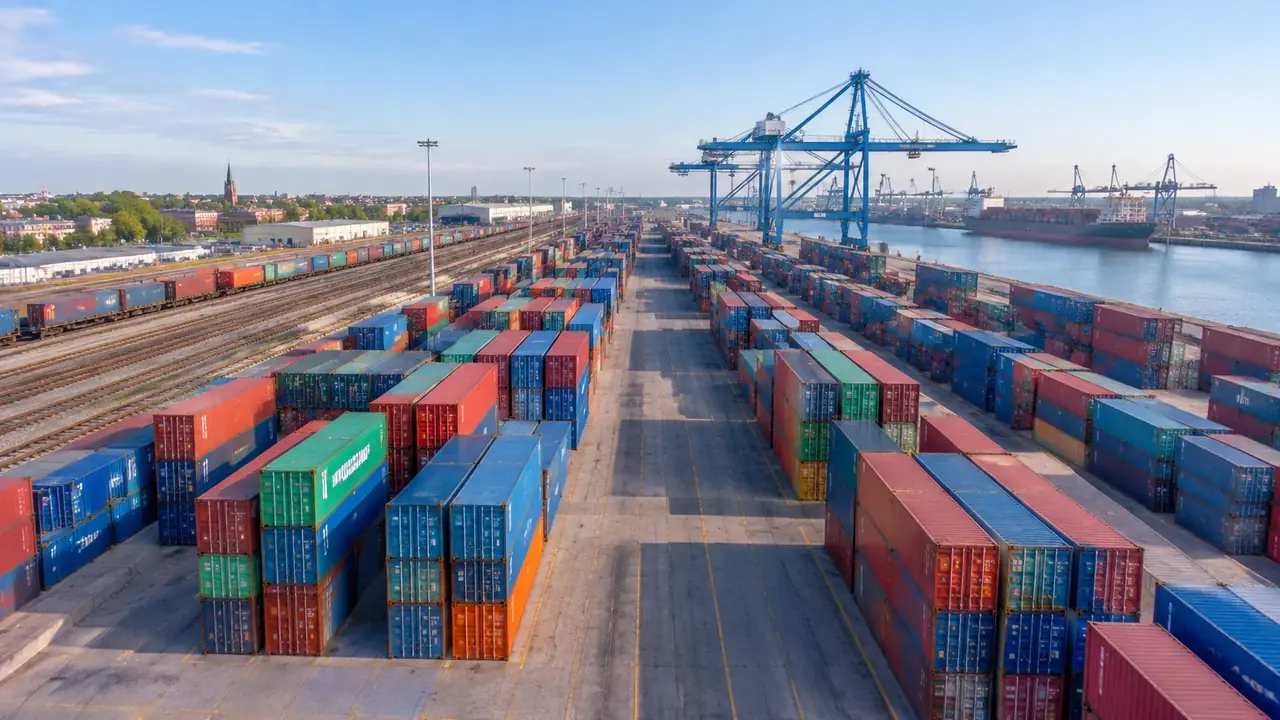
Individual buildings can be replaced with another type, moved across the ground, rotated to a new alignment, and adjusted in height. The controls are the ones a massing study needs, not the ones a detail design needs. A gatehouse can be shifted to test a new access route; a warehouse can be raised to see how it blocks a view. Each change is visible in the scene at once, which is why the tool suits early discussion. The point is comparison rather than exactness: two massing options can be judged side by side before anyone commits to a drawing.
1.2 Layers: terrain, buildings, vegetation
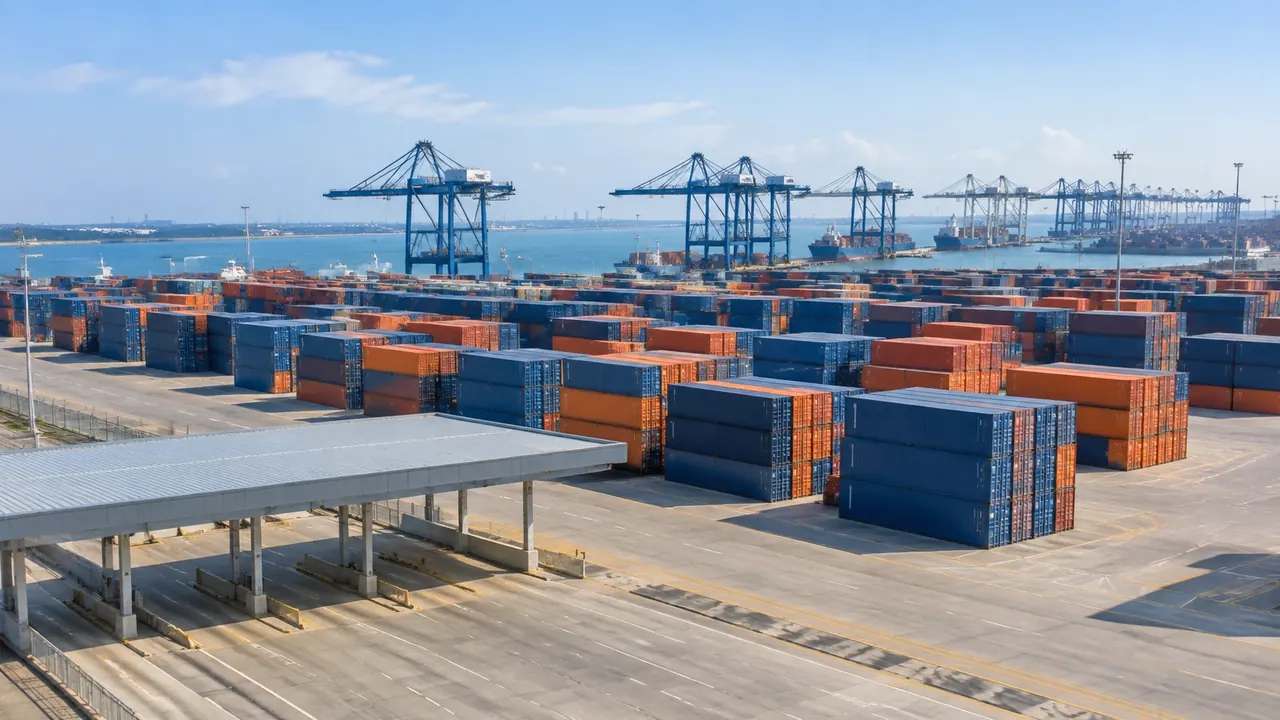
Terrain, buildings and vegetation can be previewed and managed as separate layers. Turning buildings off exposes the ground and the water edge; turning vegetation off makes the yard boundary easier to follow. Reviewers switch layers to answer one question at a time rather than rebuilding the scene for each audience. The habit is simple, and it keeps a workshop from drifting into arguments about rendering rather than layout. Layers are a reading tool, not a claim about what exists, and a hidden layer should be mentioned on the slide.
2 How containers fit a generated yard
2.1 Container stacks are equipment
Containers, straddle carriers, reach stackers and quay cranes are equipment, and the platform's generated content covers the site rather than the cargo. The product documentation lists buildings, terrain, water and vegetation. A yard full of boxes therefore comes from two sources: a generated base and an equipment model or diagram from elsewhere. That is normal in early-stage work, and it is worth saying before the picture is shown. The split is common wherever the site is stable and the cargo is not.
2.2 Showing yard use without modelling boxes
Teams often use a simpler representation. Coloured blocks on a plan show stack zones; a few representative masses in the 3D view suggest height; the generated scene supplies the ground, sheds and surroundings. The result is not a simulation of the yard, but it does show whether a layout reads clearly from the gate, the quay or the road. For an opening review, that is usually the level of detail the decision needs. A block diagram beside the 3D view often communicates more than either one alone, especially to an audience that reads plans.
3 Edits that help a terminal review
3.1 Testing a shed or gate change
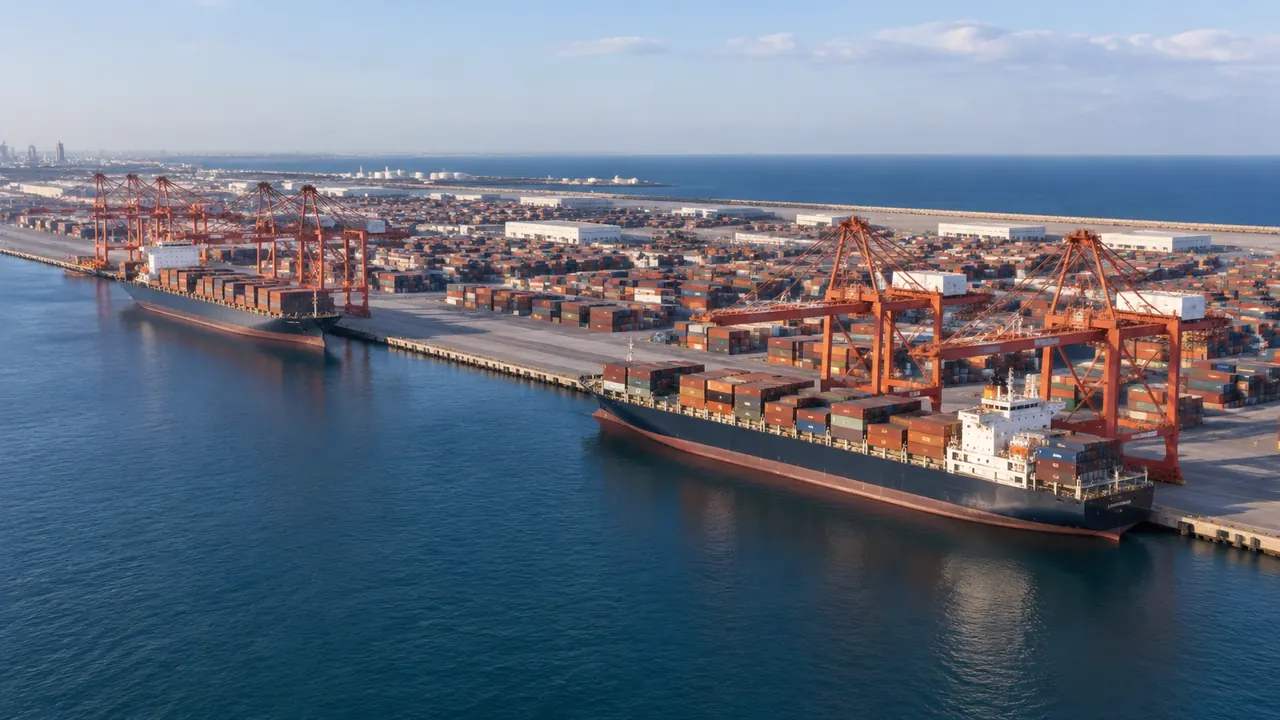
A shed due for demolition can be replaced with open ground, and a new gate can be raised or moved to test a traffic idea. Because the edit is quick, two options can sit side by side in the same session. The scene will not tell you which option handles more trucks, but it will show which one leaves the yard legible. That is a different question from capacity, and it is often the one blocking agreement. Record which option each screenshot shows, because two similar views can be confused a week later.
3.2 Reading the yard from different angles
The same edit can look sensible from above and awkward from the gate. Move the camera to the positions people actually use: the entrance, the quay edge, the road outside. A stack zone that reads well in plan may hide a shed or close a sightline at eye level. Checking both views takes a minute and prevents a review from approving a layout that works on screen and nowhere else. If a view is convincing from above but awkward at the gate, that is worth knowing before the layout is fixed.
4 Limits
4.1 No slot planning or throughput model
The scene does not plan container slots, calculate dwell time, model crane cycles or estimate throughput. Those questions need terminal operating data and a specialist model. A 3D view can host the conversation, but it cannot answer it. Teams that need the numbers keep them in the planning tool and use the scene for orientation, which is a cleaner division than asking one file to do both jobs. If the numbers matter, they should be in the room as numbers. UNCTAD's transport and trade logistics work is one place to read about the wider context that those numbers sit in.
4.2 Imagery date and recent works
Container yards are resurfaced, extended and reconfigured often. The imagery behind the scene carries a date, and work completed after that date will not appear. Check the date for the terminal and mention it before the review starts. A current layout drawing plus a dated scene works well; a dated scene presented as current is the kind of small error that undermines an otherwise sound argument. Ask the site team which works are recent, since they usually know without checking. That habit saves a correction later in the meeting.
5 Running the review
5.1 A short sequence
Show the terminal in its setting, then the yard, then the specific edit under discussion. Each view should answer one question and hand over to the next. If the audience starts with the edit, they will argue about detail before they understand the constraint. A short sequence costs a few slides and saves a long detour. Keep the slides in the same order as the questions you expect. If a question comes up that the scene cannot answer, note it and move on rather than improvising.
5.2 Handoff
Preview the scene and export a GLB when the discussion moves to another team. The export carries the site context into 3D, BIM, GIS and game engine workflows, where it can sit beside design geometry and equipment assets. Test the file in the receiving tool before a meeting depends on it. Add a note on which edits were made, because a replaced building is easy to mistake for original data. A short note on the edits is more useful than a long one on the software.
Open the GenAnywhere app and frame a container yard
6 Before you export
6.1 Scope
Decide how much of the terminal the review covers. One yard shows the ground and the sheds clearly; the whole port shows relationships but loses detail at the edge. Choose the extent that supports the decision, and record it in the agenda. If the discussion needs both, take two screenshots rather than one compromise. A clear boundary also makes the next export easier to scope.
6.2 Missing assets
Containers, cranes and trucks are not in the generated scene. List them in the handover so the next team knows what to add. The list also tells the audience which parts of the image are context and which are illustration. A named owner for each asset prevents the list from becoming a wish. That distinction matters more than the render quality when a decision is being made.
6.3 Next step
Say who receives the scene and what they will do with it. A planning team may want the yard and its surroundings; an operations team may want the ground under its equipment layout. Naming the next step keeps the export purposeful. If the purpose is unclear, the review needs a question answered before it needs another file. That question is worth asking before the export, not after.
7 FAQ
FAQ-1 What can I edit after generation?
Buildings can be replaced, moved, rotated and adjusted in height or type. Terrain, buildings and vegetation can be shown or hidden as layers for reading the scene. Equipment such as containers and cranes is not part of the generated content, so it is not editable there. The edits cover massing and setting, which is the level most early reviews work at, and they are quick enough to try during a meeting.
FAQ-2 Can I edit individual containers?
No. Containers are equipment and cargo, not generated site content. Teams show them with their own assets, simplified blocks or a plan beside the scene. If a review turns on a specific stack arrangement, that arrangement belongs in the tool that holds the equipment model. The generated scene supplies the yard around it, not the boxes themselves. Keep the two sources separate in the conversation.
FAQ-3 Can the model check yard capacity?
No. The scene does not calculate slots, dwell time, crane cycles or throughput. Those figures come from terminal operating data and a specialist model. The 3D view helps a group agree on what the yard looks like and how it relates to its surroundings. Keep the capacity question in the planning tool where it can be answered with evidence, and bring the answer back as a note rather than as a render.
FAQ-4 What do I get at the end?
A previewable 3D scene and an exported GLB carrying site context for 3D, BIM, GIS or game engine workflows. The export includes the ground, buildings and vegetation as generated, plus any edits you made. It does not include containers or handling equipment. Test the file in the receiving application, note which edits were applied, and say which assets still need to be added.
See how an edited site moves into a GLB workflow
Content and technical notes
This article was prepared by the GenAnywhere team with AI-assisted drafting and human review.
Product features, formats, and availability change as the platform evolves; refer to the official GenAnywhere website for current details.
For technical questions or corrections, contact support@genanywhere.com.
Last reviewed: 2026-11-13.