
Vessel berthing reviews: how GenAnywhere sets the scene
The quay, the water edge and the sheds behind it are generated; the ship is placed later, and the scene is the stage for the discussion.
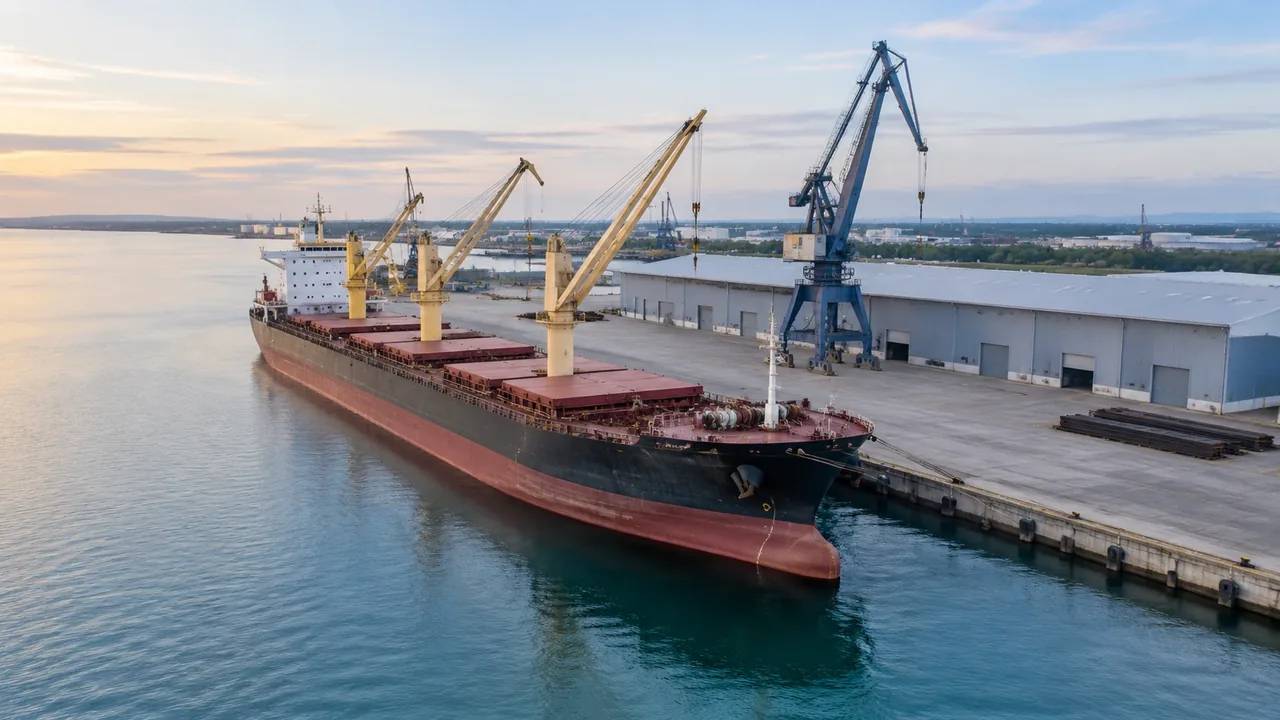
GenAnywhere sets a berth scene by generating the quay, the water edge, the sheds and yards behind it and the land around the terminal from map data. That scene is the stage for a berthing review: the place a vessel would sit, the frontage it would work against, and the neighbours on either side. The ship itself is placed later, from an asset or a naval architecture model, by the team running the review. The aim is a believable place, not a picture of a ship.
1 What a berth scene is made of
1.1 The quay line and the water edge
The quay appears where the mapped shoreline meets the land, so the berth reads as a continuous edge with a length and an alignment taken from the imagery. That is enough to show where a hull would lie and how much frontage the sheds occupy behind it. It is a surface boundary, not a depth model, and it carries no tide state. Check the berth length against a drawing before quoting it in a meeting, since a berth rebuilt last season will show the older line.
1.2 The landside backdrop
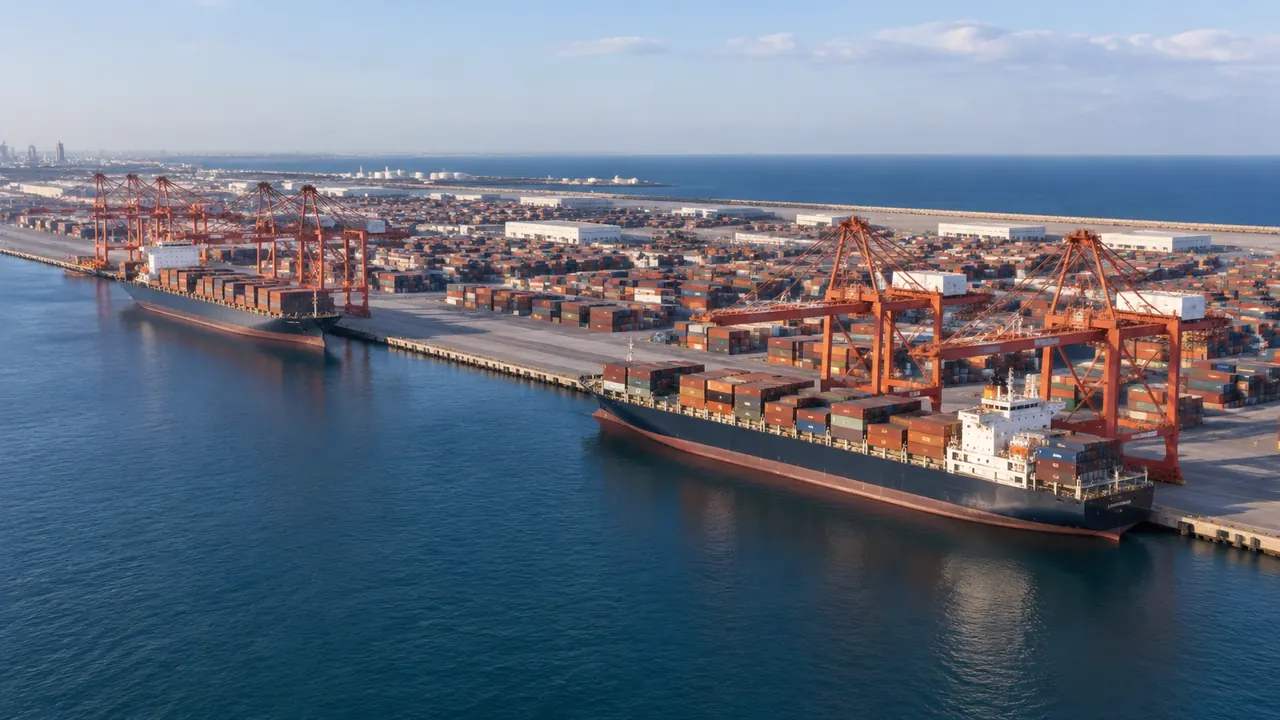
Behind the quay, sheds, gatehouses, workshops and offices usually appear because their footprints sit in the map data, with heights estimated and types inferred, so a transit shed may read as a warehouse and a small office as a gatehouse. All of them can be corrected. The backdrop matters in a berthing review because it explains what the berth serves and how much room sits between the quay and the fence, while a shed that reads as a warehouse may be a workshop, so the label matters less than the volume.
2 Choosing the frame
2.1 How much water and how much quay
A frame of about two berth lengths shows the ship, the frontage and the neighbours, which is usually the right stage for a berthing discussion. Tighter frames lose the comparison with adjacent berths; wider ones turn the berth into a strip in a city view. Include the approach water if the conversation is about how a vessel comes alongside, and take screenshots at both extents so the doubt is settled before it forms. Leave it out if the conversation is about what happens on the quay.
2.2 Camera height and the two views worth keeping
Set the camera low for berth work. A view from quay level shows the shed frontage at the scale a person sees it, and it makes the height of a hull legible. A high aerial view explains the terminal layout but flattens the relationship between ship and quay. Use both, in that order, and name the positions so the same two views can be repeated for the next vessel, since consistency is what makes a series of berth images comparable.
3 What reviewers read from the setting
3.1 Sightlines along the quay
Reviewers read a berth scene along the quay rather than across it. From a position at one end, the scene shows whether a shed blocks the view of the berth head, how far the gate sits from the frontage, and what a driver would see on approach. Those are questions about the setting, and the scene answers them without any vessel in it. They are often the questions that decide where a new gate or a canopy goes.
3.2 Neighbouring berths and terminal layout
Neighbouring berths come into the scene as quay and sheds, which lets a review compare frontage lengths and see how a terminal is arranged end to end. That comparison is coarse, since nothing distinguishes one berth from another except geometry. Label them on screen during the session. A reviewer who cannot tell which berth is which will ask, and the answer is easier to point at than to explain in words, so a numbered overlay drawn in the downstream tool is enough.
4 Correcting the scene before the session
4.1 Buildings that changed since the imagery
Terminals change between imagery dates. A shed extended, a gate moved, a workshop demolished: each is a mass you can edit in minutes, so do it before the session and keep a short list of what you changed. In a berthing review the shed frontage is often the reference point people use to judge distance, so a wrong frontage distorts every estimate made in the room. Two or three corrections are usually enough to make the scene trustworthy, and if the imagery is older than a recent extension, say so before the frontage is discussed.
4.2 Layers and what they hide
Buildings, terrain and vegetation can be toggled as layers, and hiding vegetation shows the quay and the yard without the softening of trees, while hiding buildings shows the ground the terminal occupies. For a berthing review, the useful pair is buildings on and vegetation off, because the frontage is the subject. Say which layers were active when a screenshot is shared, since a stripped view can mislead a reader who joins later, and put the layer state in the caption. Hide buildings when the question is about land take rather than about the frontage.
5 The vessel as an overlay
5.1 Placing a hull in the downstream tool
The hull is placed on the exported scene in the downstream tool, from a library model or a naval architecture file. Match the waterline footprint to the berth, keep the water level consistent with whatever the review assumes, and record which model was used. A generic hull of plausible size answers questions about occupancy and sightlines. A specific vessel matters when the meeting is about that ship, and then the model should come from the operator, with the scale noted next to the placement.
5.2 Keeping the composite honest
Three things have to agree for a composite to read: berth length, hull footprint at the waterline, and orientation against the quay. If they do, the picture explains itself, and if they do not, the audience spends its time on the error instead of the question. Manoeuvring, tug use and mooring arrangements sit outside this, and organisations such as PIANC publish the guidance that covers them. Place the ship, keep the navigation discussion in its own document, and remember that an obvious stand-in invites fewer false claims than a detailed hull.
Open the GenAnywhere app and frame a berth
6 Handing the scene to the review team
6.1 Extent and naming
Decide whether the file covers one berth, a terminal frontage or the whole port, and name the file accordingly. One berth supports a review about that berth; a frontage supports a comparison; a port view supports a conversation about how the pieces sit together. A file that tries to do all three is usually coarse where it matters. Write the extent and the imagery date in the note that travels with it; two files also let each team work at the scale it needs without rescaling anything.
6.2 Assets the scene does not hold
Cranes, straddle carriers, trucks, fenders, bollards and the vessel are not generated, and neither is cargo. List them with an owner in the handover, so the receiving team knows what the scene is missing and who is bringing it. That list also prevents the picture from being read as a terminal layout. In a berthing review the absence of cranes is obvious, and saying why is quicker than being asked twice, so four lines cover most terminals and a fifth rarely hurts.
6.3 Export and the note that goes with it
Preview the scene and export a GLB. The file carries the quay, the water surface, the ground, the buildings and any edits into 3D, BIM, GIS and engine workflows. Test it in the receiving application, confirm the up axis and the scale against a shed you know, and note the imagery date. The authorization statement covers the licence, which allows commercial use and limits resale and model training, and a dated scene is easier to defend than an undated one.
7 FAQ
FAQ-1 Does the scene include the ship?
No. The generated content is the quay, the water edge, the ground, the sheds and the vegetation around them, while a vessel is a design or asset model placed on the exported scene by the team running the review. Say which model was used, because a stand-in hull and a specific ship invite different assumptions about what the picture shows. Describe it as a placed asset wherever the composite is shown, and the scene stays useful either way.
FAQ-2 Can it show a berthing manoeuvre?
No. A scene is a still setting, not a simulation, and turning circles, tug movements, approach angles and mooring arrangements need navigation studies and the guidance that covers them. The scene can show the water area in front of the berth and what stands along the quay, which helps a group agree on the geography before those studies are discussed. Say which of the two activities the meeting is doing before the file is opened, and keep them apart.
FAQ-3 How much of the terminal should be in frame?
Enough to show the berth, the frontage behind it and the neighbouring berths. Two berth lengths is a reasonable starting frame, adjusted for the question. A review about a gate or a shed needs more landside; a review about the approach needs more water. Take two screenshots at different extents rather than arguing about one that suits nobody, and write the frame in metres beside each image.
FAQ-4 What arrives in the handover?
A previewable scene and an exported GLB with the quay, water surface, terrain, buildings, vegetation and your edits. Cranes, cargo and the vessel are not included. Open the file in the receiving tool, check scale and orientation, and pass it on with a note on extent, imagery date and the assets still to be added. Keep the note with the file rather than in a message that will be lost; it is part of the deliverable.
See how a berth scene becomes a review base
Content and technical notes
This article was prepared by the GenAnywhere team with AI-assisted drafting and human review.
Product features, formats, and availability change as the platform evolves; refer to the official GenAnywhere website for current details.
For technical questions or corrections, contact support@genanywhere.com.
Last reviewed: 2026-11-13.