
Terminal export: does GenAnywhere support GLB?
Yes. A generated terminal site can be previewed and exported as GLB, and the file carries the site rather than the terminal equipment.
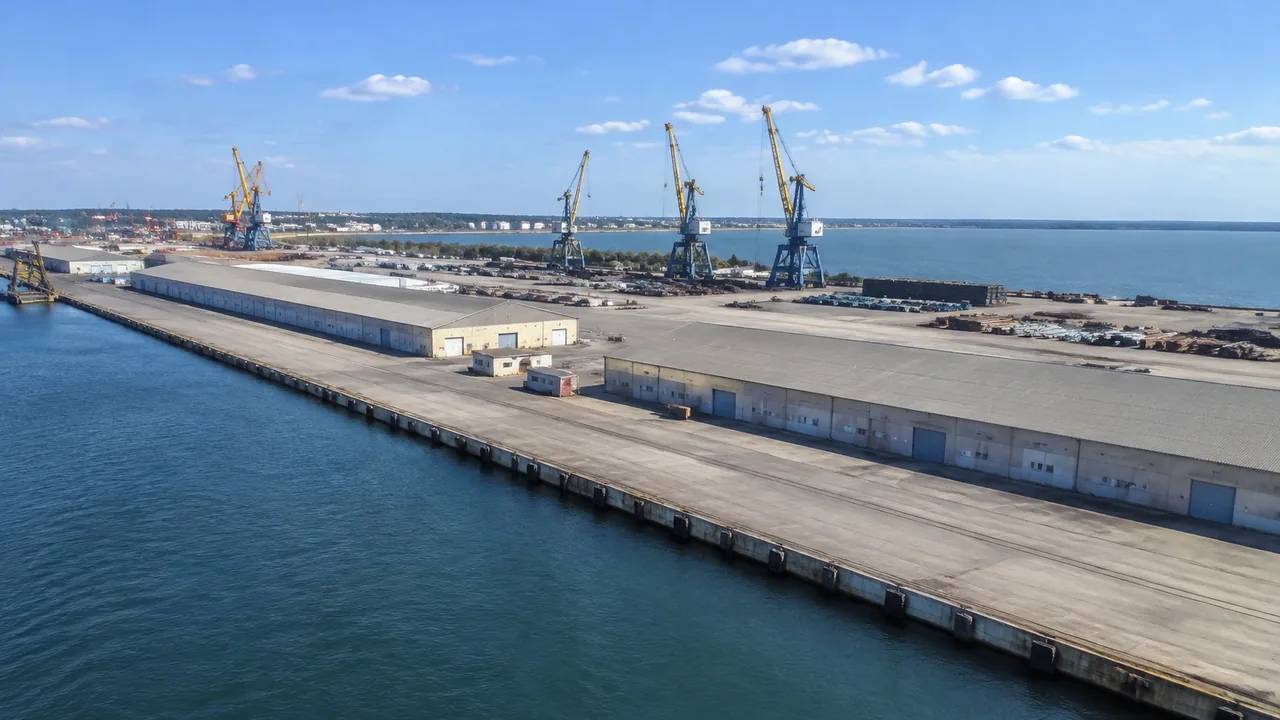
GenAnywhere supports GLB export for a terminal scene, and the export is the same general-purpose step used for any other site on the platform. You generate the terminal area from map data, check it in preview, then export a file that opens in a range of 3D, BIM, GIS and game engine workflows. What the file contains is terrain, water, vegetation and building masses. Cranes, container stacks and rail are not part of it. That split is worth stating at the top of any review.
1 The answer in detail
1.1 What the export is
The export is a snapshot of the generated scene at the moment you preview it, written as a GLB. It includes the terrain surface, open water at the berth, vegetation coverage and the building masses inside the extent you selected. Any edits made before preview, such as a replaced shed or a moved gatehouse, are in the file. That is the whole content. There is no separate terminal layer, no yard layout and no equipment schedule hidden in the export. What you see in preview is what the receiving tool opens.
1.2 What it is not
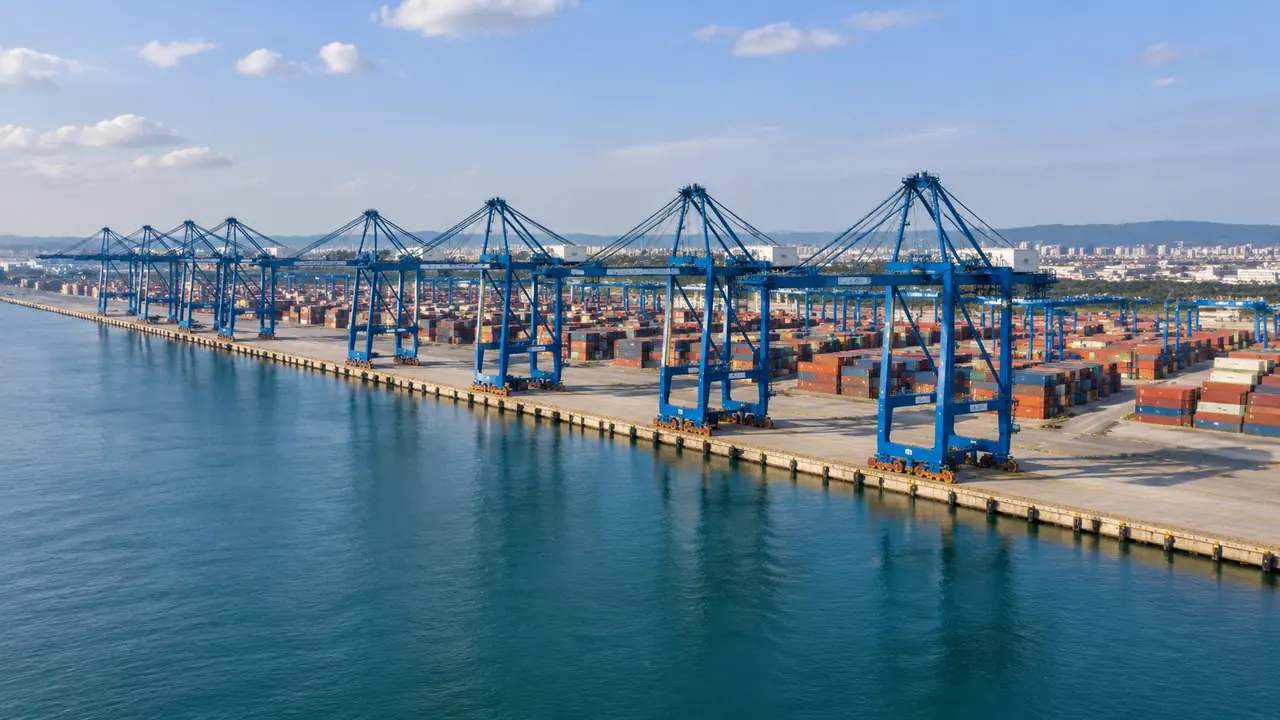
It is not a terminal model, a design deliverable or a format that carries engineering properties. The file has no berth occupancy, no crane specification, no pavement loading and no quay wall detail. It also carries no survey control or coordinate metadata that a project might expect. Treat it as a landscape with buildings, and the file behaves predictably. Treat it as a terminal, and the opening review will spend its time on what is missing. Better to clear that up before the file is sent than after.
2 Why the format is GLB
2.1 A general scene format
GLB is the binary form of glTF, a scene format maintained by the Khronos Group and read by a wide range of applications. The practical benefit is that one file can move between a game engine, a viewer, a design tool and a GIS application without a converter. For a terminal review that means the same scene can serve an internal workshop and an external stakeholder session. Formats and import behaviour still vary by product, so the file is portable rather than universal. That distinction matters when a stakeholder asks whether it will work on their machine.
2.2 What travels and what stays
Geometry and the basic scene structure travel. Design intent does not. A crane supplier's model, a yard plan, a phasing diagram and a pavement design all stay in their own systems, and each is placed on the exported site by the team that owns it. That separation is a feature of the workflow rather than a limitation of the format. It keeps the site stable while the terminal design keeps changing, which is the normal condition of a port project. One stable site, many design versions, and a note for each.
3 Checking the file after export
3.1 Opening it in the target tool
Open the export in the application that will actually use it, not in the one you happen to have. Import settings differ, and a scene that looks correct in a viewer can arrive rotated, scaled or split into unexpected objects in a BIM tool. Give the receiving team a file early enough that a failed import is a small problem. A quick test on a laptop before a meeting is worth more than an assurance after it. Ask the receiving team which application and version they will use.
3.2 Scale and origin
Check the scale against something known: the berth length, a shed frontage or the distance between two gates. Check the origin as well, because a scene can sit far from the coordinate frame the receiving project uses. If the target workflow needs a specific origin, agree it before the export rather than after. A misplaced model is easy to fix and hard to notice, which is the worst combination in a review. A quick measurement against the berth catches most of it.
4 Terminal details worth checking
4.1 Quay, yard and sheds
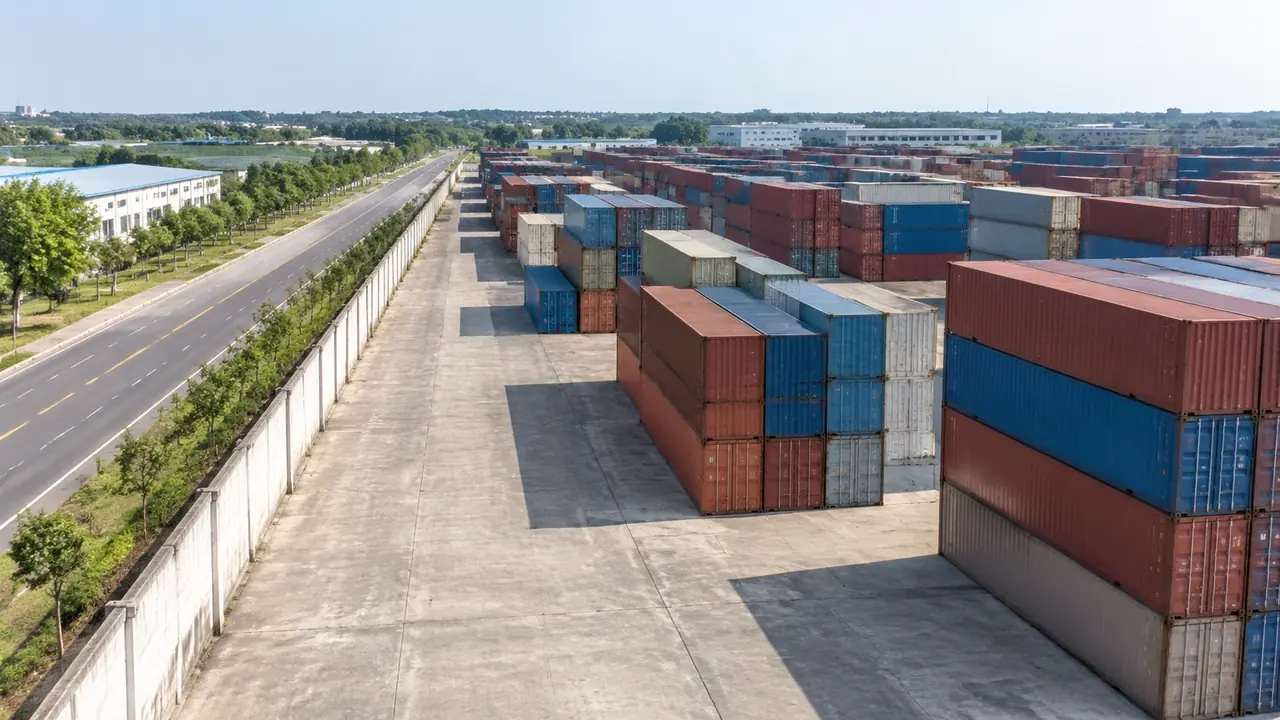
The quay line is the edge where water meets the terminal ground, and it is the feature most terminal audiences look at before anything else. The view from the water settles arguments that the overhead view starts. Behind it, the yard reads through the buildings and the ground surface rather than through markings. Sheds, workshops and offices appear as masses, and their heights are estimates from imagery. Walk the quay at eye level before export, because a shed that looks right from above can sit oddly when seen from the water.
4.2 Equipment on the design side
Cranes, stacks, trucks, rail and vessels belong to the design model or an asset library. None of them is generated, and none is in the GLB. For a terminal review that means the exported file is a stage set waiting for its props. Say so before any image is shown, and name the tool that holds the equipment. Keep those file names in the handover note. The scene then does its job as context, and the design model does its job as proposal.
5 Where teams take it
5.1 Engines and viewers
Real-time engines and viewers are a common destination because the GLB opens directly and the scene is light. A terminal quay walked at eye level in a viewer gives a sense of enclosure that a plan cannot. Teams use this for orientation, for stakeholder sessions and for checking whether a proposed shed blocks a view from the water. None of that needs equipment geometry, which is why the export works without it. A viewer with a frame rate problem will not care about cranes.
5.2 BIM and GIS workflows
BIM authoring tools and GIS applications can open the export as well, with behaviour that varies by product and version. One workflow may treat the scene as a background mesh; another may bring it in as objects that can be selected. Neither approach is wrong, but the team needs to know which one to expect. Ask before the export, and test with the actual application rather than a similar one. Version differences are the usual culprit when an import fails.
6 Before you rely on it
6.1 Test the whole route
A file that opens is not the same as a workflow that works. Test the export through the steps the receiving team will follow: import, place equipment, set the camera, save and share. Problems usually appear at the third step rather than at the start. Keep a short record of what failed and what fixed it. Running that sequence once, with the real team, removes most of the surprises that otherwise arrive in the week before a review.
6.2 Note the gaps
Write down what the file does not contain: cranes, stacks, rail, vessels, design properties and survey control. Add the imagery date and the extent. A short note is more useful than a long disclaimer, and it can be attached to the file rather than described in a call. The note also protects the scene from being judged against a standard it never claimed to meet. Attach the note to the file rather than sending it separately.
6.3 Next step
Decide what happens after the export. A design team may import the site and build the terminal on it; a planning team may use it for a visual; a GIS team may overlay it with existing layers. Each of those is a different workflow with a different expectation of the file. Naming the next step before the export decides which checks matter. The authorization statement covers how exported files may be used. That statement is short and answers most of the questions about reuse.
Open the GenAnywhere app and export a terminal site
7 FAQ
FAQ-1 Does the GLB include the terminal equipment?
No. The export holds terrain, water, vegetation and building masses. Cranes, container stacks, trucks and rail come from a design model or an asset library and are placed on the site downstream. That keeps the file small and the site reusable when the equipment layout changes. Plan the source of those assets before the review, not during it. The split also means the site survives a change of crane supplier.
FAQ-2 Can I export the same scene again later?
Yes, and re-exporting is usually better than editing the file by hand. If the scene changes, generate the update and export a new version, then name it with a date. Hand edits drift away from the source and nobody can tell which version is current. Keep the reviewed export until the replacement is confirmed. A date in the file name is the simplest version control there is.
FAQ-3 Will it open in my BIM tool?
Often it will, since many BIM authoring tools read GLB, but behaviour varies by product and version. Some treat the scene as a single mesh; others import objects separately. Test with your application and your template before promising the file to anyone. If the team needs a different structure, ask what they expect and prepare accordingly. When an import fails, the importer settings are the place to look.
FAQ-4 Are other formats available?
Output formats depend on the workflow and the integration in use, so the honest answer is that GLB is the general export and other routes follow the workflow you are in. Check the current platform documentation for what is offered today. If a project needs a specific format, raise it before the scene is built rather than after the export is done. A question to support early is cheaper than a rebuild late.
See how a generated terminal moves into a GLB workflow
Content and technical notes
This article was prepared by the GenAnywhere team with AI-assisted drafting and human review.
Product features, formats, and availability change as the platform evolves; refer to the official GenAnywhere website for current details.
For technical questions or corrections, contact support@genanywhere.com.
Last reviewed: 2026-11-13.