
Container model export: a GLB handoff GenAnywhere supports
What leaves the platform when a container yard model becomes a file
A container yard is easy to show and harder to hand over. A picture impresses a meeting and then sits in a slide. A file can move into a training simulator, a visualization, or a planning tool, where someone can use it. A container model export is the step between those two states, and it is worth planning before the yard is built rather than after.
1 What a handoff has to solve
1.1 A picture records a view, a file records a place
A screenshot answers one question from one angle. A file lets the next person choose the angle, walk the lanes, and place the yard inside a larger scene. That difference matters because the same terminal may be reviewed by planners, trainers, and safety staff who each need a different view.
A handoff also moves responsibility. The person who built the scene knows which parts are simplified. The person receiving it does not, and the gap between those two understandings is where most handoff problems start.
1.2 Choosing the destination before building
The receiving tool shapes the work. A training walkthrough needs the gate, the lanes, and the places a person will stand. A regional map needs the terminal outline and little else. Building for both at once produces a file that is heavy and vague.
Ask the receiving team what they will do with the yard. If the answer is a board presentation, a rendered view may be enough. If the answer is an interactive session, the scene needs walkable routes and a clean gate area. A handoff planned around one destination is easier to judge, and the file can be exported again for a second audience.
2 Preparing the yard for handoff
2.1 Fixing the extent and the block plan
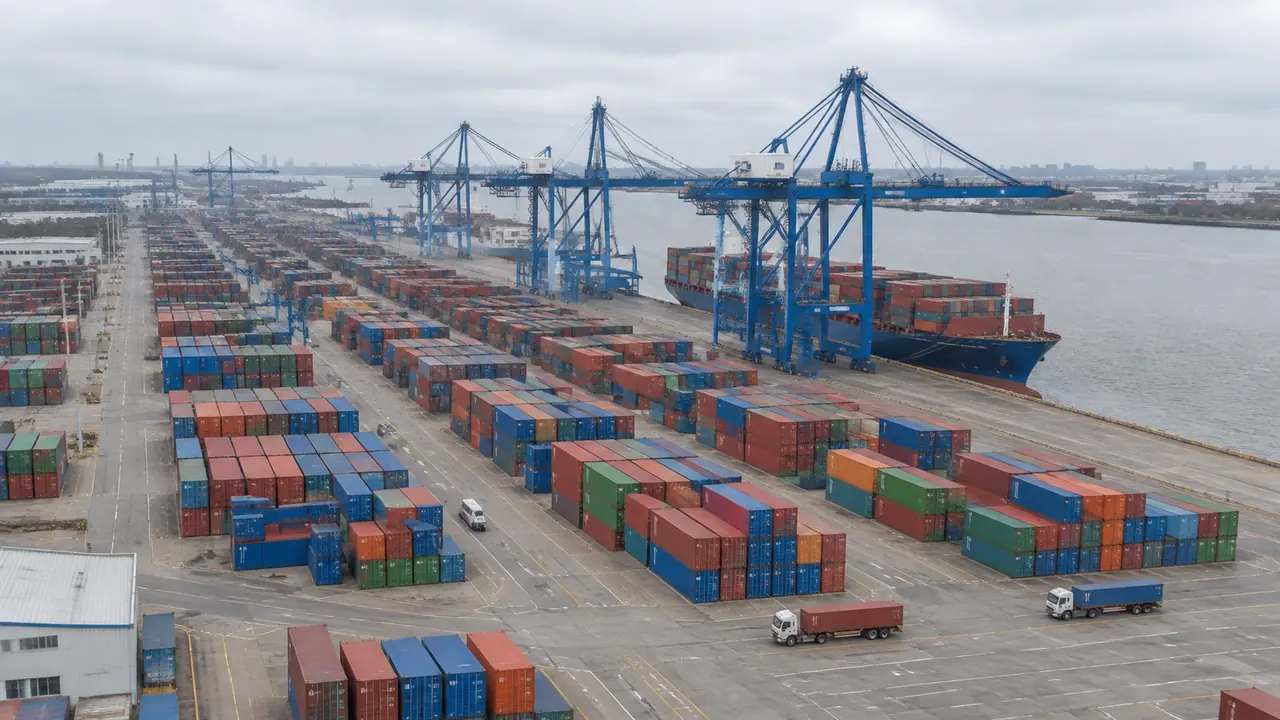
Agree on the extent before adding detail. The berth line, the yard fence, and the gate should all be inside the file, along with the road approach that feeds the gate. A file that stops at the fence leaves out the queue that shapes the operation.
Then fix the block plan. Container blocks, lanes, and stack rows should follow the plan the team agreed on, not an earlier version. In GenAnywhere, the yard is built from a map selection, and blocks can be replaced, moved, or rotated as the plan changes.
2.2 Checking the scene from the receiving team's angle
Look at the yard from the places the receiving team will look from. The gate, the crane base, and the road outside the fence are the usual viewpoints. Each one catches a different problem, from a blocked lane to an entrance that reads poorly from the street.
Walk the file before sending it. A modeler who has spent a week in a scene stops noticing the obvious, and five minutes at eye level often catches what the overhead view hides.
3 What travels with the file
3.1 Geometry, materials, and scale
The export carries the geometry of the scene, its materials, and its scale. That is enough for the receiving team to place the yard in a larger environment and to use it as context for their own work. The file is a snapshot of the scene at the moment it leaves.
Scale is the detail that causes the most trouble on arrival. A yard that arrives at the wrong size looks plausible until someone measures a lane against a truck. Confirm the units with the receiving team before the file is used in a drawing. Ask which units their project uses. A mismatch found in a meeting costs more than a question asked before export.
3.2 What stays behind
Operational data stays with the systems that own it. Container numbers, schedules, crane cycles, and ownership records are not part of a scene file, and a team that expects them will be disappointed. The same applies to survey control and coordinate systems that a GIS team would treat as authoritative.
Those limits are not defects. They define the handoff. A scene carries the place, and the systems carry the records. Keeping that line clear prevents a meeting where two teams argue about numbers that were never in the file. That line is also worth explaining to anyone who opens the scene later.
4 Importing without surprises
4.1 What to check on arrival
Open the file in the destination tool before the meeting where it will be shown. Check the extent, the orientation, and the scale. Look for missing materials, flipped faces, and geometry that sits below the ground plane.
A short check list is enough: the file opens, the yard sits in the right place, the gate faces the road, and the stacks match the plan. If any of those fail, fix the source and export again rather than patching the import. Keep a copy of the original until the imported version is confirmed. If the import surprises you, the copy is the reference.
4.2 Naming and versioning
Name the file with the date, the terminal, and the configuration. A name that says which yard and which week is more useful than a serial number. Keep a short note of what changed since the previous version, and store the note beside the file.
Two teams working from different versions is the most common cause of a confusing review. A date in the file name and one line of change notes prevent most of it. Put the version in the name rather than in a folder tree. Folder structures differ between teams, and a name travels with the file.
5 Reviewing the handoff together
5.1 A short handover session
Spend half an hour with the receiving team in the file. Show the extent, the level of detail, and the places where the scene is simplified. Let them ask where a lane goes and how a gate operates. The questions reveal what the file does and does not answer.
Record the answers and keep them with the scene. A handover that produces a shared list of assumptions is more useful than one that produces a polished walkthrough and no notes. Invite one person who will use the yard daily. Their questions tend to be about turning circles and sight lines.
5.2 When to send a new version
Send a new version when the block plan changes, when the extent changes, or when a mistake is found that affects a decision. Do not send one for cosmetic edits. Too many versions teach the receiving team to ignore the file.
Tell the team what changed and which views to use. A short message is easier to act on than another meeting. A short message with the date and two sentences of context is enough.
6 Where this fits
6.1 Teams that benefit
Port planners, terminal design teams, and training groups that need a walkable yard get value from a planned handoff. So do visualization teams preparing a scene for a board or a public session. Safety teams are another audience, since they care about walkways, crossings, and the places where a person and a vehicle share ground. Consultants handing work to a client are another group, and a clean handoff is often the part of the job the client remembers.
6.2 When a screenshot is enough
If the audience needs one view, a rendered image is faster and lighter. A file earns its place when someone needs to move through the yard, compare configurations, or use the geometry in another tool. That test usually becomes clear in the opening ten minutes of a handoff discussion.
6.3 A short checklist
Agree on the destination, the extent, and the block plan. Check the scene from the gate and the road. Open the file in the receiving tool. Write the change note. Then send it with the viewpoints the team should use. A handoff that runs once is cheaper than one that runs every week.
You can build a yard scene at the GenAnywhere app and read how exports move into other tools on the workflow pages. For the format itself, Khronos glTF documents the standard behind the GLB.
7 FAQ
FAQ-1 What should be checked before a yard model is handed over?
Check the extent, the block plan, and the gate approach. Confirm that the file opens in the destination tool and that the scale matches the receiving project. Walk the gate and the road at eye level. Then write down what is simplified, so the receiving team knows which parts of the scene are context rather than detail.
FAQ-2 Does the file include textures?
The export includes the materials used in the scene. Complex procedural materials may not survive the trip, and the receiving tool may substitute its own. Plan a short visual check after import, especially if the yard will be shown to an outside audience. A screenshot from the receiving tool is a cheap check.
FAQ-3 How should versions be named?
Use the date, the terminal name, and a short description of the configuration. Add a one-line note of what changed. Keep the previous version until the new one has been opened and accepted. A clear name and a short note prevent two teams from reviewing different yards in the same meeting.
FAQ-4 What license applies to the export?
Exports come with a perpetual commercial license for the model. The license does not allow resale of the raw files or use for AI training, and third-party data rights still need checking. Confirm the current terms on the official site before a commercial use, since the wording can change. Keep a copy of the terms with the project record.
Content and technical notes
This article was prepared by the GenAnywhere team with AI-assisted drafting and human review.
Product features, formats, and availability change as the platform evolves; refer to the official GenAnywhere website for current details.
For technical questions or corrections, contact support@genanywhere.com.
Last reviewed: 2026-11-13.