
Storage tank export: does GenAnywhere support GLB?
Yes. Preview the scene and export a GLB; the file carries the site around the tanks, not the tanks as engineering models.
GenAnywhere supports GLB export from a previewed scene, and that answer holds for a tank farm as it does for any other site. What leaves the platform is the generated context: terrain, water, buildings and vegetation, plus any edits you made. What does not leave is the tank farm itself as equipment, because tank shells and process plant are not part of the generated content. The distinction decides how useful the file will be downstream.
1 The short answer
1.1 Preview then export GLB
The workflow is straightforward: generate the site, preview it, make the edits you need, then export a GLB. The format is a general-purpose scene format maintained by the Khronos Group, which is why it opens in a wide range of 3D, BIM, GIS and game engine tools. Export is a deliberate step rather than an automatic save, so the scene you send is the one you checked. That matters on a tank farm, where a wrong building or a missing water body is easy to spot in preview and awkward to explain later. A scene that has been walked through before export is easier to defend than one that was saved in a hurry.
1.2 What the file includes
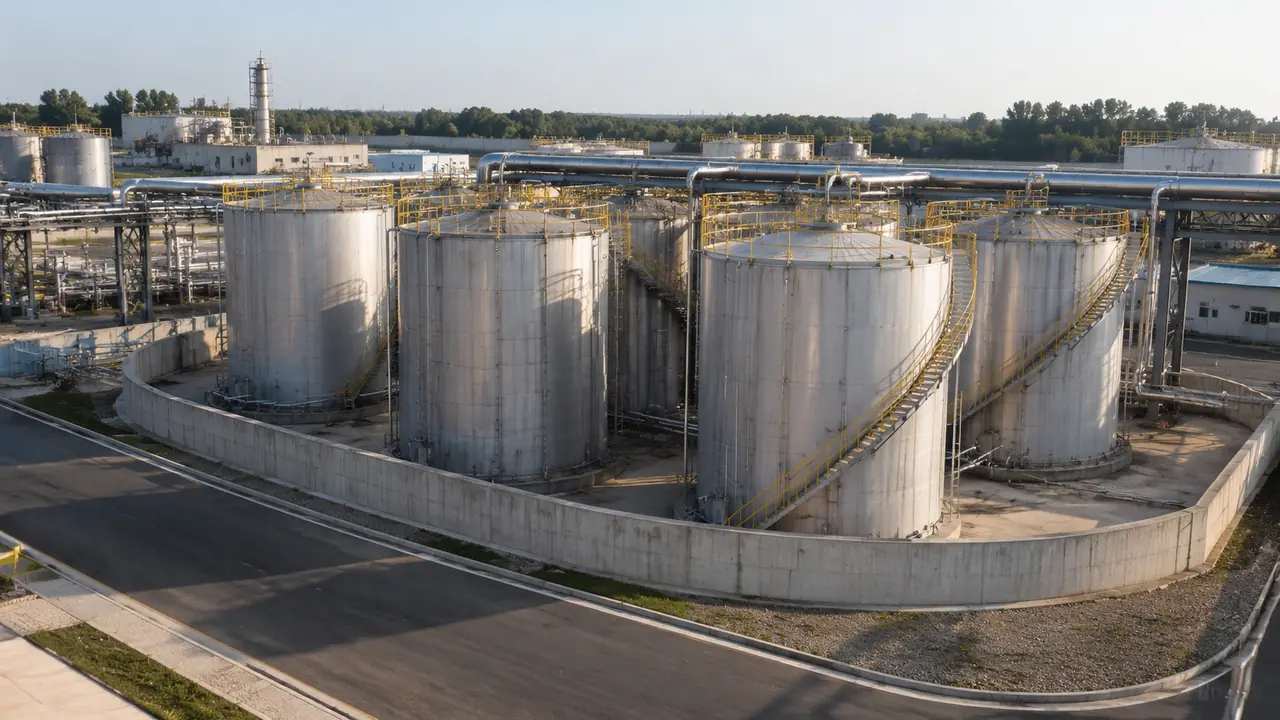
The export includes the terrain surface, water bodies, building masses and vegetation, along with the edits applied before preview. Buildings keep the footprint, height and type they had in the scene, including any replacements you made. The file is a snapshot of the site at that moment, not a live link to the platform. If the site changes, or if you change your mind about an edit, you export again rather than editing the GLB by hand. Keep the scene open until the handover note is written, so the record matches the file.
2 What the file does not include
2.1 Tank shells and equipment
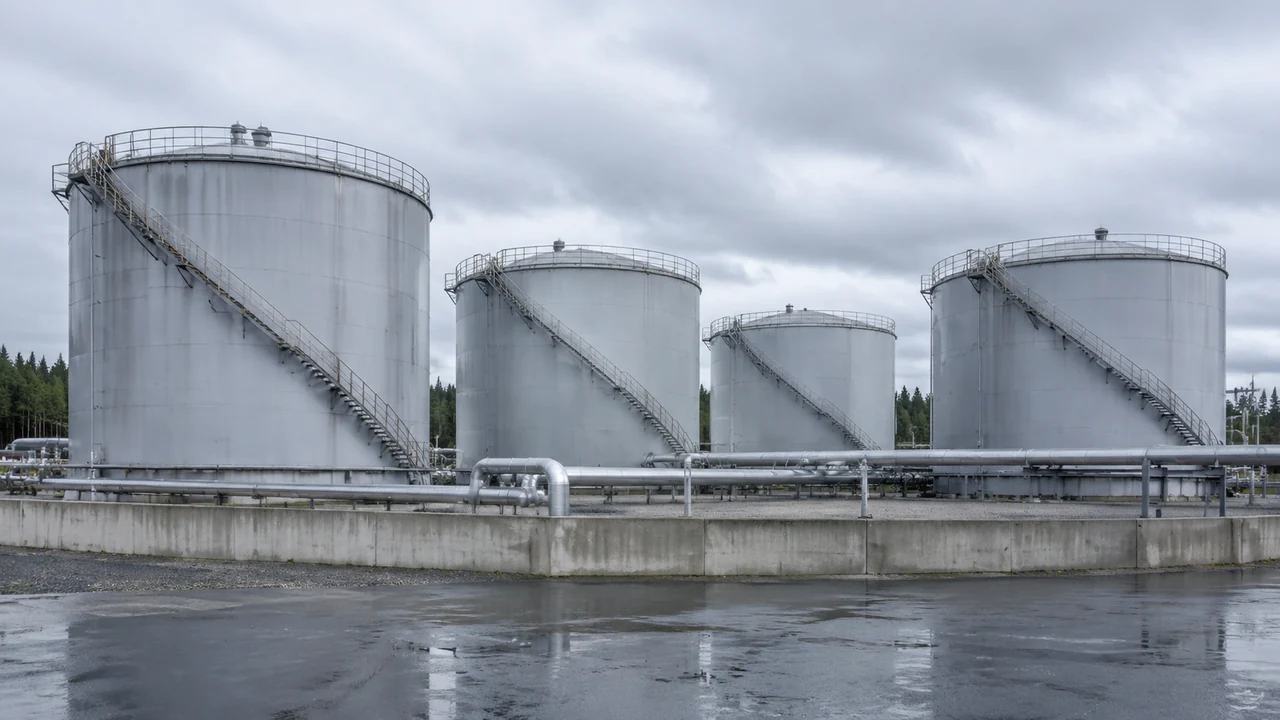
Tank shells, floating roofs, pipe racks, pumps and loading arms are process equipment, and the platform's documented content covers buildings, terrain, water and vegetation. The platform overview sets out the same list. A team that expects to find tanks in the GLB will not find them, and a team that expects the ground the tanks stand on will be satisfied. State which one the file contains before it is sent, especially when the receiving team was not in the conversation. The site is still worth exporting without the tanks, because the ground is the part that takes longest to rebuild elsewhere.
2.2 Engineering properties
The file carries geometry and not much else. There are no capacities, volumes, material specifications, design pressures, inspection records or equipment tags, because none of those are part of a generated site. If the review needs them, they come from the engineering model and its data sources. Keeping the two apart is not a limitation to apologise for; it is the reason each can be trusted for what it does. The separation also makes the handover quicker, because each team can work on its own part.
3 Putting the export to work
3.1 Engine and DCC workflows
Game engines and 3D authoring tools are a common destination. The scene opens without conversion, and the terrain gives the tank masses a ground to sit on while a layout is discussed. A team can place simplified tank shapes, check sightlines from the gate, and see how a new bund would read against the existing ground. The scene does not become the design, but it makes the design easier to explain to people who do not read plans. A short walkthrough at eye level shows more than a set of still images, especially where a bund meets a road.
3.2 BIM and GIS
BIM and GIS workflows can also open the export, though behaviour varies by product and version. In a GIS, the scene may arrive as a single object or as a set of layers, depending on the import settings. In a BIM authoring tool, it usually serves as a background reference rather than a modelled asset. Ask the receiving team which pattern it expects, then test the file before a meeting depends on the answer. If a GIS import fails, try a different export setting before assuming the file is wrong.
4 Limits
4.1 No compliance or capacity check
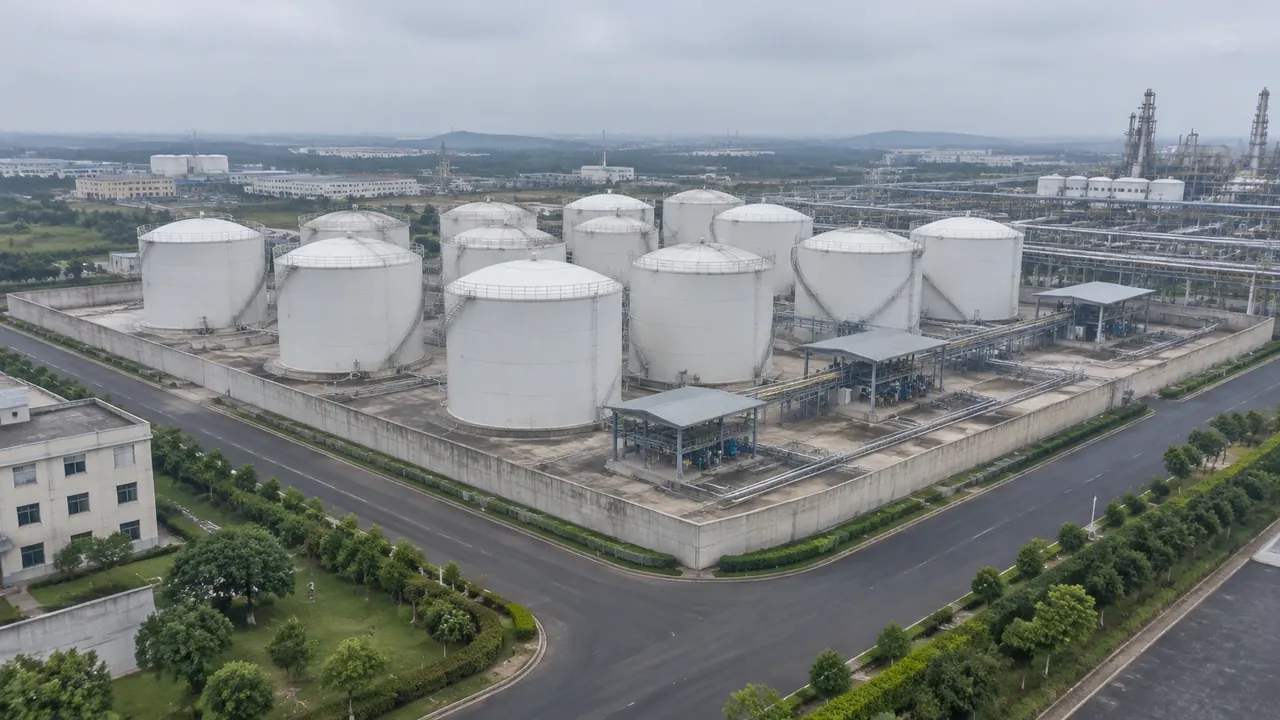
The scene does not check spacing, bund capacity, fire separation or any other regulatory requirement, and the export does not add that ability. Those questions need design data, the applicable standard and a qualified reviewer. A 3D view can support the conversation around a layout, but it cannot certify one. Keep the compliance work in its own process and use the scene to explain the setting, not to close the question. Say what the scene is for, and let the compliance process keep its own evidence.
4.2 Imagery date
The imagery behind the scene has a date, and a tank farm changes in visible ways: a new tank, a raised bund, a rerouted road. Check the date for the area and mention it when the file is handed over. If the changes are significant, correct the buildings you know and note the rest. A dated scene is still useful; a dated scene presented as current is the start of a misunderstanding. Ask the site team which tanks are new, because the answer is usually immediate.
5 Running the review
5.1 A sequence
Open with the farm in its landscape, then the boundary, then the area under discussion. The wide view answers how the site relates to water, roads and neighbours; the closer views answer how the ground is arranged. After that, anyone can talk about a specific tank or bund. That order keeps the audience from debating equipment before they understand the site, and it makes the missing geometry obvious at the right moment. If the audience includes operations staff, name the equipment that is missing before they ask.
5.2 Handoff
Send the GLB with a note on what it contains and what it does not. Confirm that the receiving team can open it and that the scale and origin are as expected, because import behaviour differs between tools. If the team needs a different extent or a corrected building, re-export from the scene rather than patching the file. Keep the original scene until the handover is confirmed, so a second export is quick. A short confirmation from the receiving team closes the loop.
Open the GenAnywhere app and frame a tank farm
6 Before you export
6.1 Scope
Decide how much of the site the file should cover. A single tank group shows the ground and the nearby buildings clearly; a whole terminal shows relationships but thins the detail. Choose the extent that answers the question, and name it in the handover note. If two questions need two extents, export twice rather than compromising once. Name the extent by the tank groups it includes, not by a coordinate pair.
6.2 Missing assets
Tanks, pipes, pumps and loading arms are not in the file. List them in the note and say where the geometry will come from, so the receiving team can plan the combination. The list also tells the audience which parts of the picture are context and which are design. That distinction is the difference between a useful handover and a file that disappoints. A named owner for each missing asset keeps the list from drifting.
6.3 Next step
Say who receives the file and what they will do with it. A planning team may want the landscape; an engineering team may want the ground under its tank model. Naming the next step keeps the export purposeful. If nobody can say what happens next, the review needs a question answered before it needs another file. That question usually shows whether the export is needed at all.
7 FAQ
FAQ-1 Does GenAnywhere support GLB export?
Yes. You preview the scene and export a GLB, which is a general-purpose 3D format supported by many engines, design tools and GIS applications. The export contains the generated site and any edits you made. It does not contain equipment such as tanks. Test the file in the receiving application, because import behaviour varies between products and versions, and note which settings worked.
FAQ-2 Are the tanks included in the GLB?
No. The generated content covers terrain, water, buildings and vegetation. Tank shells and process equipment come from the engineering side and are not part of the export. Teams combine the two in the downstream tool. Say this before the handover, so the receiving team plans for the equipment model rather than discovering the gap in the meeting, and name the tool that holds it.
FAQ-3 Can I use the export for a compliance review?
Use it for context, not for compliance. The scene does not check spacing, containment, fire separation or any other requirement, and the export adds no such capability. Those checks need design data and a qualified reviewer. A realistic picture can support a discussion, but it should never be filed as evidence that a layout complies with a standard. Keep the two documents apart.
FAQ-4 What do I get at the end?
A previewable 3D scene and an exported GLB carrying the site context. The file includes terrain, water, buildings and vegetation, plus the edits applied before export, and it does not include tank equipment or engineering properties. Test it in the receiving tool, confirm the scale and origin, keep a note of what was left out, and retain the scene for the next export.
See how a tank farm site moves into a GLB workflow
Content and technical notes
This article was prepared by the GenAnywhere team with AI-assisted drafting and human review.
Product features, formats, and availability change as the platform evolves; refer to the official GenAnywhere website for current details.
For technical questions or corrections, contact support@genanywhere.com.
Last reviewed: 2026-11-13.