
Can GenAnywhere set crane position and heading?
No. A crane is equipment, so its position and heading belong to a design model in another tool; the platform supplies the site it stands on.
GenAnywhere generates the site: ground, buildings, vegetation and water inside an area chosen on the map. A crane is equipment, and equipment is not part of that generated content, so there is no control for position, heading or radius. The crane arrives as an asset in a downstream application, and the scene's contribution is the ground, the neighbours and the boundaries it has to work within.
1 What the question is really asking
1.1 Cranes are equipment, not site content
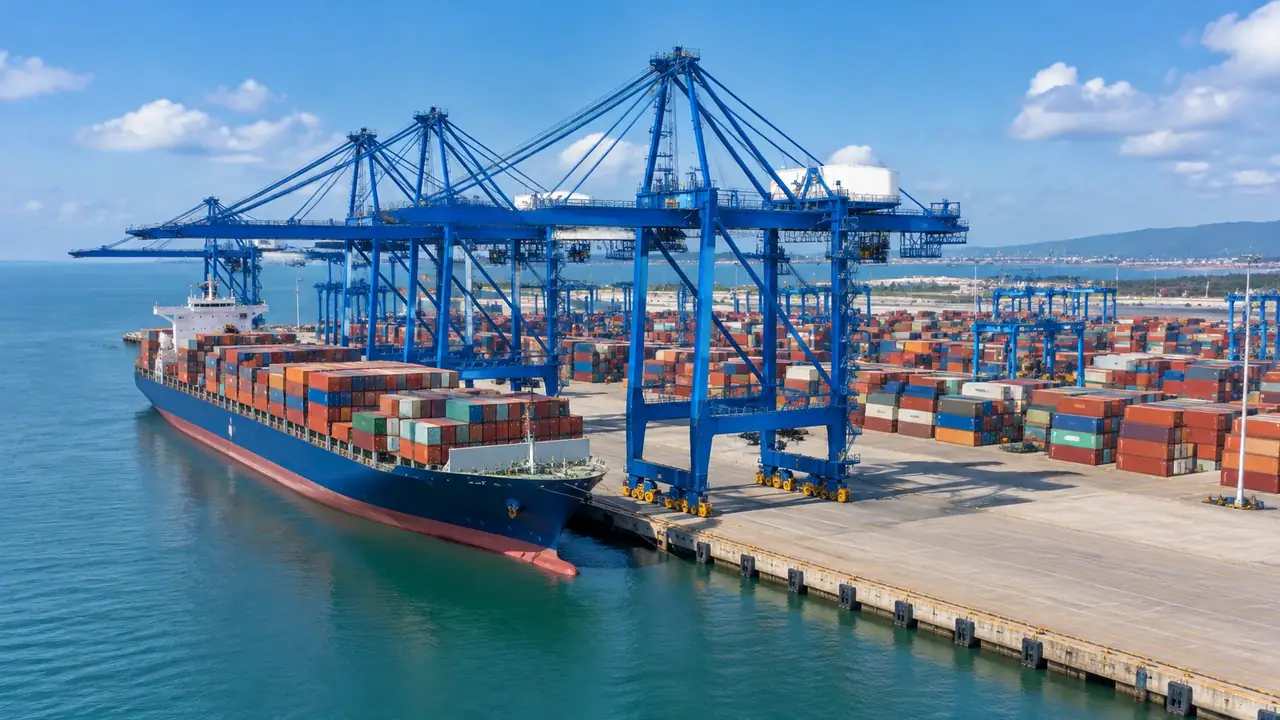
The documented output covers terrain, water, vegetation and building massing, with footprints, heights and types inferred from imagery. Lifting equipment sits outside that list, alongside cranes on quays, gantries and conveyors. There is no generation step that produces a crane, and no panel where an equipment position is typed in. A team expecting a crane handle in the interface will keep looking, so put the boundary on the table at the start of the session and keep the site itself as the subject.
1.2 What the platform can set
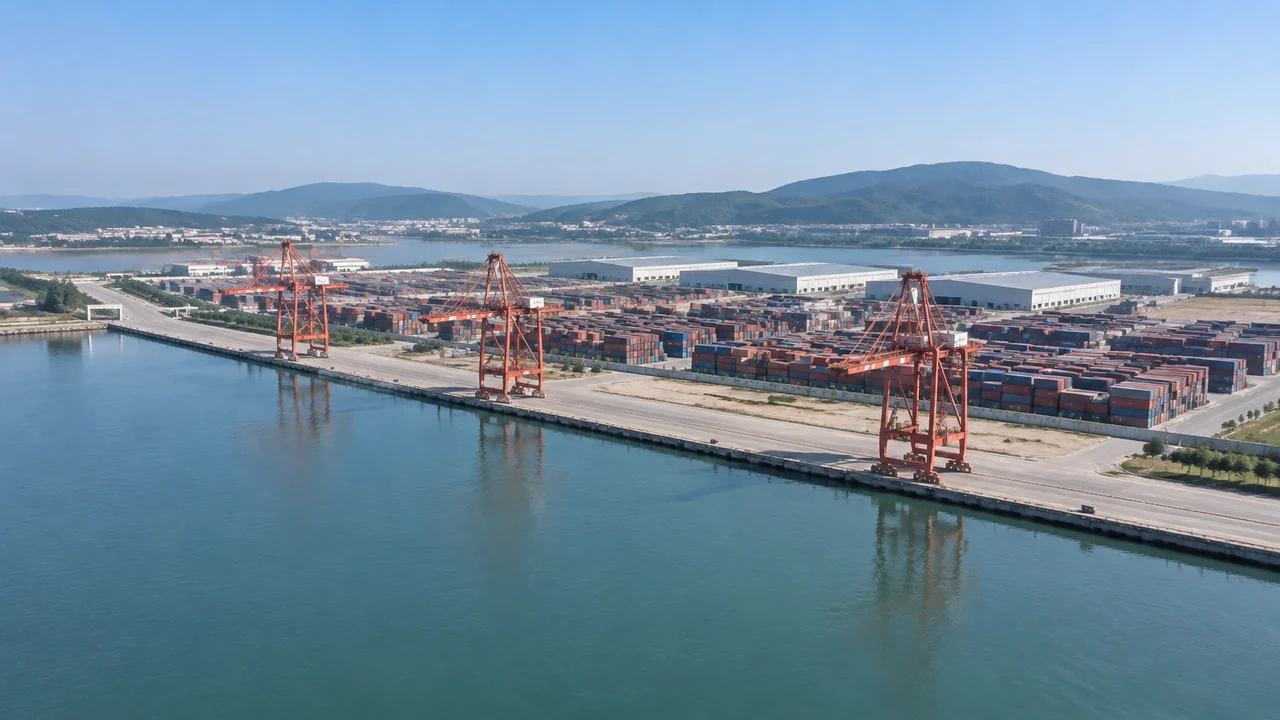
What can be set is the site. Buildings can be replaced, moved, rotated and adjusted in height or type, and terrain, vegetation and buildings can be managed as layers. None of those controls reaches equipment. A crane placed in the scene by a downstream tool keeps the position that tool gave it, which is how a design asset should behave. The scene stays a setting, and the equipment stays a design decision with an owner who can be named.
2 Site facts that decide crane placement
2.1 Ground, boundaries and neighbours
Crane decisions rest on facts the scene does show: how much open ground exists, where the property boundary runs, which buildings sit within the working area, and what the ground looks like on each side. A site hemmed in by housing reads differently from one with a spare yard next door, and that difference shapes the choice of equipment long before any calculation. Looking at the surroundings together is a quick way to rule out options nobody would propose. It also gives residents and engineers the same starting picture.
2.2 Access, delivery and laydown
Access matters as much as position. Existing roads and gateways appear in the imagery, so the scene shows where a vehicle could plausibly reach the site and how much space sits between the entrance and the footprint. Laydown areas, standing positions and the route a delivery takes are planning decisions, not generated geometry. Use the view to agree which entrance the discussion is about, then hand the transport question to the team that will plan it. A named entrance is often the whole outcome of the meeting.
3 Using a crane block in a review
3.1 Placing the block downstream
The usual practice is a simple block: a mast, a jib and a counterjib at roughly the right proportions, imported into the 3D tool that holds the exported scene. Position and heading are then set by dragging and rotating the block, or by typing coordinates taken from the site plan. Keep the block clearly labelled as a placeholder, because a detailed crane model in a realistic scene reads as a committed plan to anyone outside the team. A single colour for all temporary equipment helps as well.
3.2 Discussing heading without numbers
Heading is worth discussing in a room even when nobody is calculating. A jib pointing over a neighbour's garden raises a different conversation from one that swings over the site's own yard. Rotating the block through two or three orientations makes that visible in a way a plan drawing does not. What the discussion produces is a preference and a question for the lifting engineer, not a setting to be signed off. Write the preference down before the meeting ends.
4 Limits
4.1 No lift planning or ground bearing
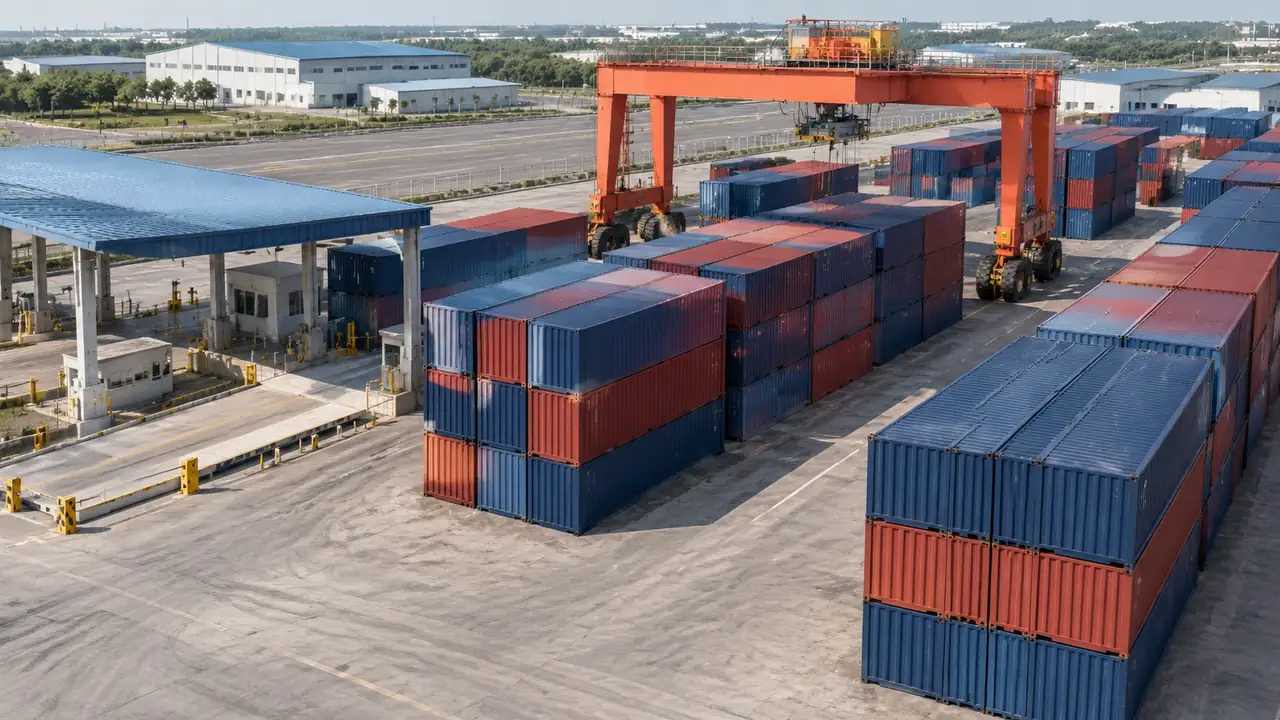
Nothing in the scene calculates capacity, radius, outrigger loads, ground bearing or wind limits. Those come from the equipment manufacturer's tables, the ground investigation and the lift plan, and the ISO standards that underpin crane safety sit with the engineers who apply them. A scene can show that a crane looks cramped against a boundary; it cannot say whether the arrangement is safe. Say so before a picture of a crane block starts circulating as an answer, because that picture travels further than the caveat.
4.2 No clearance or clash checking
The platform does not check clearances between a jib and a building, a power line or another crane. It does not detect clashes of any kind. Where the review needs that assurance, the check happens in the design tool or on site with the people accountable for it. Keep the crane block in its own file so it can be removed before a view is shared with an audience that might mistake it for approved geometry. Two versions of the view, one with and one without, cover most requests.
5 Review practice
5.1 A short agenda
Half an hour is enough for most early crane conversations. Start with the site in its neighbourhood, then the boundary and the access point, then the block in two orientations, then a list of what still needs deciding. The sequence moves from context to equipment and back to open questions, which keeps the session from turning into a lift study. If the group wants numbers, that is the signal to stop and book the lifting engineer. Better to end early with three questions than late with none.
5.2 What to record
Record which orientation was preferred and why, along with the two or three constraints that drove the choice: a boundary, a school, a narrow entrance. Note the imagery date, since a demolished building or a new car park changes the picture. Photographs of the screens are useful, but write the reasoning down as text, because a picture of a crane block does not explain which option it replaced or who objected. A paragraph of notes outlives a folder of captures.
Open the GenAnywhere app and frame a site for equipment discussion
6 Handing the scene on
6.1 Extent and layers
Frame the site plus the ring of buildings that constrains it. A frame tight to the plot hides the neighbours that cause half the objections, and a frame covering a whole district loses the boundary. Decide whether vegetation stays visible, because trees near a boundary affect how a jib reads in a view even though they do no engineering work. Note the state you chose so the next session can reproduce it, and keep the same camera height when comparing orientations.
6.2 What the export carries
Preview and export a GLB with terrain, buildings and vegetation plus your edits. Cranes, vehicles and lifting gear are not included, and the file does not remember which way a block was pointing. Test the import in the receiving application, then say plainly in the handover note that the equipment was placed elsewhere. That note saves the next team from opening the file and concluding the crane was lost in export, which happens more often than it should.
6.3 Asset list for the next team
List the crane block, the delivery vehicles and any temporary works as assets with a name, a version and an owner. A block without a version number gets overwritten, and a review that compares two sessions may then compare the same file twice. If the receiving team uses a different tool, note the units and the origin they should expect. Small handover notes prevent most of the confusion that surrounds equipment in site models, and they cost almost nothing to produce.
7 FAQ
FAQ-1 Can I set a crane's position and heading in GenAnywhere?
No. Position and heading are properties of an equipment asset, and the platform does not generate or control equipment. It generates the site around the crane: ground, buildings, vegetation and water. Set the position and heading in the 3D, BIM or visualization tool that holds the exported scene, where the crane block can be moved and rotated like any other design object. Keep that file separate so the site can be re-exported without losing the equipment.
FAQ-2 Will a crane appear in the scene automatically?
No. Nothing in the generated output represents lifting equipment. If a crane appears in a view, someone added it downstream, and the file that holds it is not the exported scene. That distinction matters during a handover, because the exported GLB will never contain a crane and a reviewer who expects one will assume the file is broken. Say what the export holds before it is opened.
FAQ-3 Does the scene help with crane decisions at all?
It helps with the constraints around them. Boundaries, neighbouring buildings, open ground and access points all come through, and those are the facts that narrow the options before any calculation starts. A group can agree that a position is impractical without agreeing on a specific machine. The lifting engineer then works from a shorter list and a shared picture of the site. That saves a site visit or two, and it makes the visit that follows more focused.
FAQ-4 Does it matter whether the crane is a tower or a mobile unit?
The boundary is the same for both. Either type is equipment and arrives as an asset. What changes is the site information people look at: a tower crane raises questions about the footprint and the tie-in points, while a mobile unit raises questions about standing area and access. Both conversations start from the same generated ground and end in the same design tool. Naming the type at the start of a session keeps the questions relevant to the machine in question.
See how a site scene moves into an equipment and design workflow
Content and technical notes
This article was prepared by the GenAnywhere team with AI-assisted drafting and human review.
Product features, formats, and availability change as the platform evolves; refer to the official GenAnywhere website for current details.
For technical questions or corrections, contact support@genanywhere.com.
Last reviewed: 2026-11-13.