
Can GenAnywhere set vessel position and heading?
There is no ship object in the scene, so there is no position or heading field to fill in.
No. GenAnywhere does not provide a vessel object, so there is no position or heading control to apply to one. The berth, the water edge and the sheds behind it are generated site content, while a hull arrives from a design package or an asset library and is placed in the receiving tool, where its transform is set. Everything about vessel pose belongs to that later step.
1 Why there is no pose control
1.1 No vessel object to select
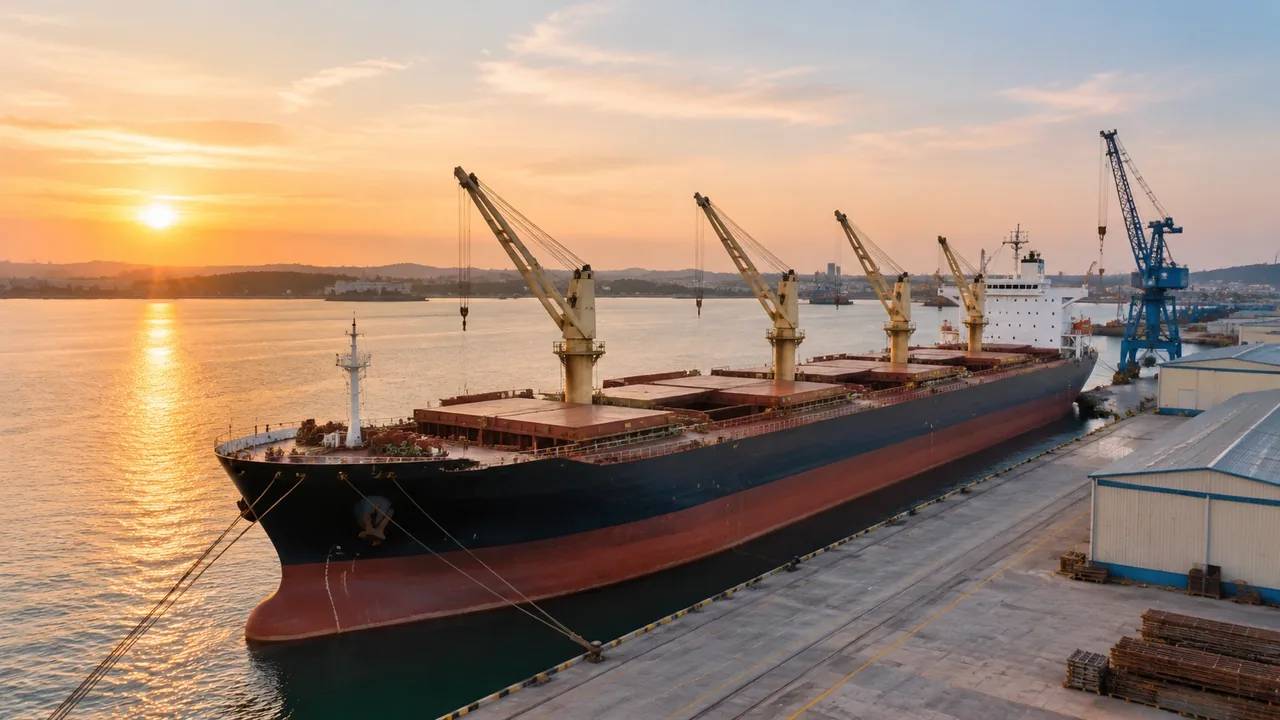
A generated scene holds no ship, and that absence answers the question at its root. Selecting a berth gives you the quay edge, the ground behind it and the water surface, not a hull that can be grabbed and turned. With no object of that kind in the scene, the question of where its position and heading fields live does not really arise. Nothing is hidden behind a menu, and no setting will reveal a vessel transform. Anyone who has used a scene editor will look for it anyway, so it is worth saying at the start of a session that the search will end in the same place.
1.2 The controls that do exist
The edit tools act on buildings: replace a volume, move it, rotate it, change its height, change its type. Because those controls exist and behave well, it is fair to expect a similar set for a ship at the quay. The platform overview lists what those tools cover, and vessels are not among them. A reviewer who tries to rotate a hull will rotate the view instead, which is a quick way to lose the camera position that took ten minutes to find.
2 Where position and heading are set
2.1 The receiving tool owns the transform
Position and heading are set in whichever application receives the exported scene. An engine has a scene graph with a transform for each object, a BIM tool places an element against a project base point, and a GIS environment stores coordinates with an orientation attribute. Those are different mechanisms, and they do not agree on conventions by default. Whichever one the team uses, the site arrives before the hull and the hull is placed against it afterwards, so the two transforms are never set in the same session.
2.2 Heading against what reference
Heading means little without a stated reference. A vessel might be described relative to the quay face, to true north, or to the grid of the receiving project, and those three numbers will not match. A hull lying parallel to a quay that runs north east is at forty five degrees to north, at zero to the quay, and at something else again in a local grid. Write down which reference you used before anyone repeats the figure in a second tool.
3 Making a placement believable
3.1 Four values that have to agree
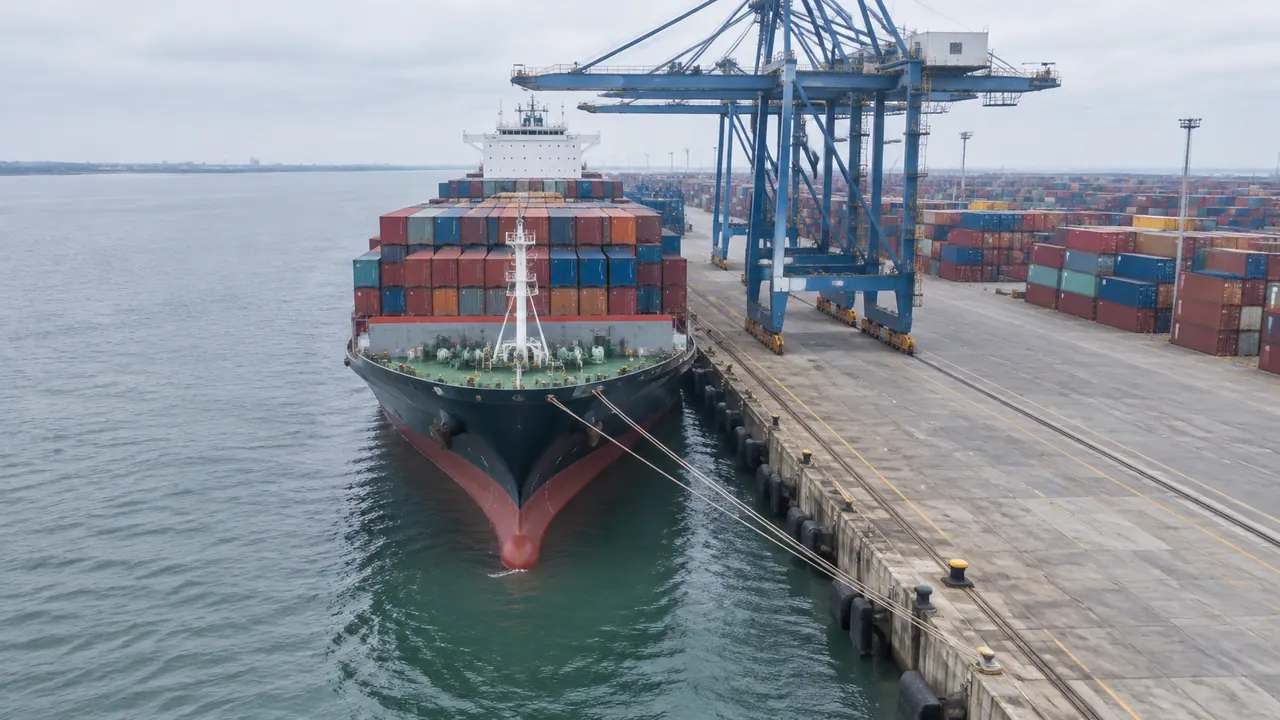
The berth length, the hull length at the waterline, the position of the hull along the quay and its heading have to agree with each other. Overhang and gap at each end are the visible result, and a metre of drift looks like a planning error in a still image. Heading adds the second axis, since a hull a few degrees off the quay line reads as coming alongside rather than as moored. Get all four close and the composite reads as a berth rather than as a cut and paste.
3.2 Lines, fenders and gangways
Mooring lines, fenders, gangways and shore connections are equipment, and none of them are generated. They are added as assets in the receiving tool when the picture needs them, and they change how a moored hull is read. A ship with no lines looks adrift, and a ship with lines that stop short of the bollards looks worse. If the review is about appearance, spend the time on the lines rather than on hull detail, because that is where the eye goes.
4 Recording a placement
4.1 Degrees, north and the local grid
Coordinates and orientations need a stated reference, and organisations such as the OGC publish the standards that define how those references are described and exchanged. Most project confusion comes from mixing two of them without noticing. Record the working reference, the north direction and the unit of angle, then check one known feature against it before the placement is trusted. Without that check, a rotated quay and a rotated hull look equally plausible on screen. A single control point that lands correctly says more than a page of assumptions about the convention.
4.2 The note beside the hull
Keep a short note with every placed hull: source file, scale, heading reference and the water level the picture assumes. That note lets a second person repeat the placement without guessing at any of the four. It also shows at a glance that the hull is an asset rather than part of the scene, which matters when the picture reaches someone who was not in the room. Four lines under the image title will carry all of it, and they take less time to write than the picture took to make.
5 What the berth scene does give
5.1 Berth length and the water edge
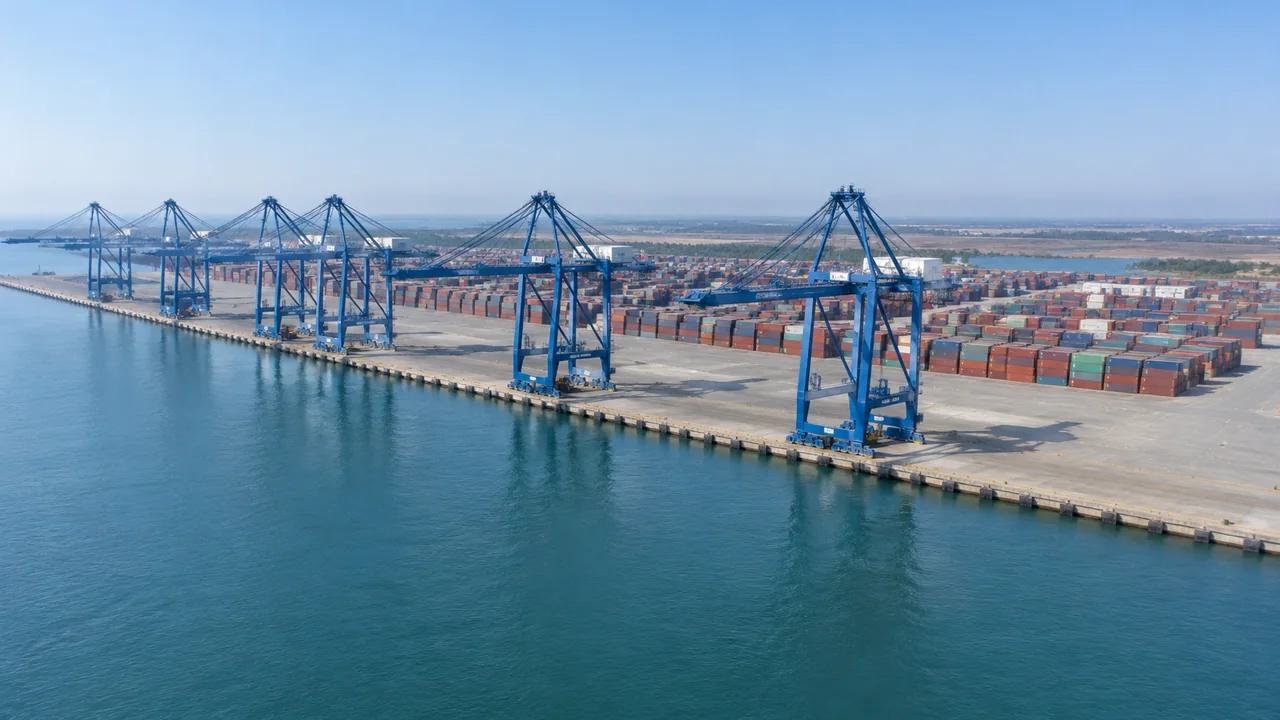
The scene gives the berth itself: the quay line where mapped water meets the ground, the length and alignment the imagery records, and the sheds and yard behind it. Those are the fixed points a hull has to meet, and they are the reason a berth scene is worth exporting at all. If the quay has been extended since the capture, the scene will show the older length, so check the current drawing before a hull is placed against it. Treat the edge as context, not as a dimensioned drawing.
5.2 A setting for comparisons
A berth scene is good at comparisons. Two hulls of different length at the same quay show which one dominates the frontage, and the same hull at two headings shows how much water it occupies. Those comparisons do not need navigation modelling, and they answer questions that arrive early, such as whether a larger class could be handled at all. Keep the images side by side with the same camera, or the comparison collapses into two unrelated views of the same place.
6 Handoff and review
6.1 Export, then place
Preview the site, export the GLB, and place the hull after import. The file carries the quay, the ground, the buildings and the vegetation into 3D, BIM, GIS and game engine workflows, and the ship is added there rather than here. Import behaviour differs between applications, so open the file in the receiving tool before a meeting depends on it. If the placement will be reused, save the receiving scene as well, so the transform survives a refresh of the site.
6.2 A checklist for the placed hull
Check the placed hull against four things: length at the waterline, gap at each end of the berth, heading relative to the quay, and the water level the picture assumes. Then check the label. If any of those is unknown, say so in the caption rather than leaving a reader to work it out from the image. A checklist that takes two minutes prevents the slow discovery that the hull on the slide was a different class from the one under discussion.
6.3 Keep it labelled as an asset
Describe the hull as a placed asset wherever the composite is shown, in the caption and in the file note. A viewer who assumes the ship was generated will assume the depth, the mooring arrangement and the berth fit were generated with it, and none of them were. That mistake is easy to make and hard to undo once a picture has travelled through three meetings. A short phrase in the caption does the whole job, and it costs nothing to repeat it in the covering note.
Open the GenAnywhere app and frame a berth for export
7 FAQ
FAQ-1 Can I rotate a ship inside GenAnywhere?
No. There is no vessel object in the scene, so there is nothing for a rotate control to act on. The rotate tool works on buildings, and applying it to water or to the whole scene moves the camera rather than a ship. A hull is turned after export, in the receiving tool, where it is placed as an asset. If the review needs a different heading, the change happens there and the export stays untouched.
FAQ-2 Can I enter a heading in degrees?
Not inside the platform. Heading is set in the receiving tool, and the value depends on the reference that tool uses, which may be the project grid, true north or the quay face. Record which one applies, and check it against a known feature before the image is shared. A heading quoted without its reference is a number nobody else can reproduce, which makes it worse than no number at all.
FAQ-3 Will the vessel appear in the export?
No. The GLB carries the site: quay, water edge, ground, buildings and vegetation, plus any building edits. The vessel is placed downstream, and if a ship appears in an exported file it was added after import by whoever prepared that file. Say so in the handover, because keeping the export free of assets is what makes it reusable when the vessel under discussion changes. A port that keeps one clean site file can test a dozen hulls against it without exporting again.
FAQ-4 Can the scene check whether a ship fits the berth?
No. The scene shows the berth length as the imagery records it and the water as a surface, and it does not compare a hull against either. Fit depends on hull dimensions, fender line, water level and the operating margins a port sets, and those come from drawings and from the port's own rules. Use the scene to show the relationship, and the drawings to test it. A berth that looks comfortable in a picture can still fail a port's own operating rules, and the picture will not warn anybody.
See how a berth scene moves into a GLB workflow
Content and technical notes
This article was prepared by the GenAnywhere team with AI-assisted drafting and human review.
Product features, formats, and availability change as the platform evolves; refer to the official GenAnywhere website for current details.
For technical questions or corrections, contact support@genanywhere.com.
Last reviewed: 2026-11-13.