
Quay crane export: does GenAnywhere support GLB?
Yes, the platform exports a GLB of the generated terminal site; crane geometry comes from your own asset pipeline and meets the file in the next tool.
Yes, GenAnywhere exports a GLB, and around a quay that file carries the berth, the water, the sheds and the yard ground. It does not carry quay cranes, because cranes are equipment rather than generated site content. A team expecting a working terminal in one file should plan for two: the site from the platform, and the machinery from its own library.
1 What a GLB of a terminal contains
1.1 The site side of the file
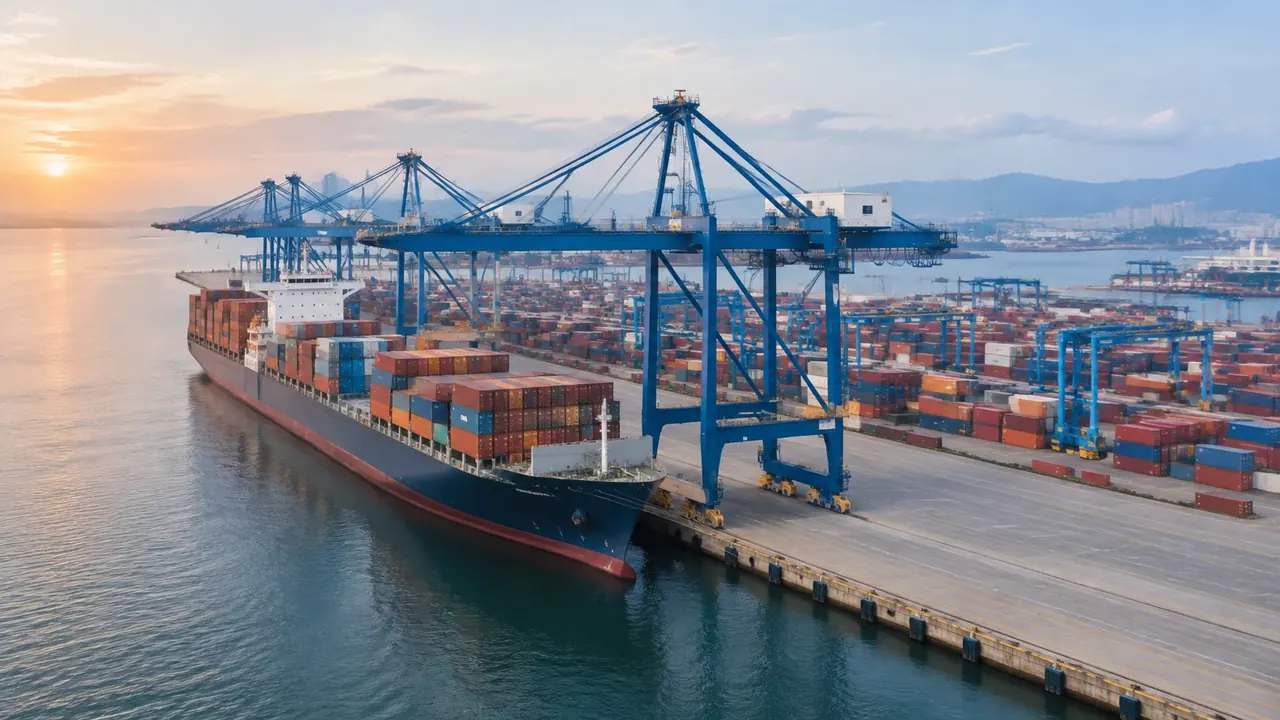
An export holds what the platform generated: terrain, the water surface, vegetation and building masses, plus whatever edits you made before preview. The water edge sits where the mapped shoreline meets land, so the quay line appears as a vertical face rather than a wall with fenders and ladders. Materials are simple by design, which keeps the file light enough to open on an ordinary laptop. For a format question, that is the useful answer: a general scene file that behaves predictably in several applications. The glTF specification behind it is published by the Khronos Group.
1.2 What the crane is not
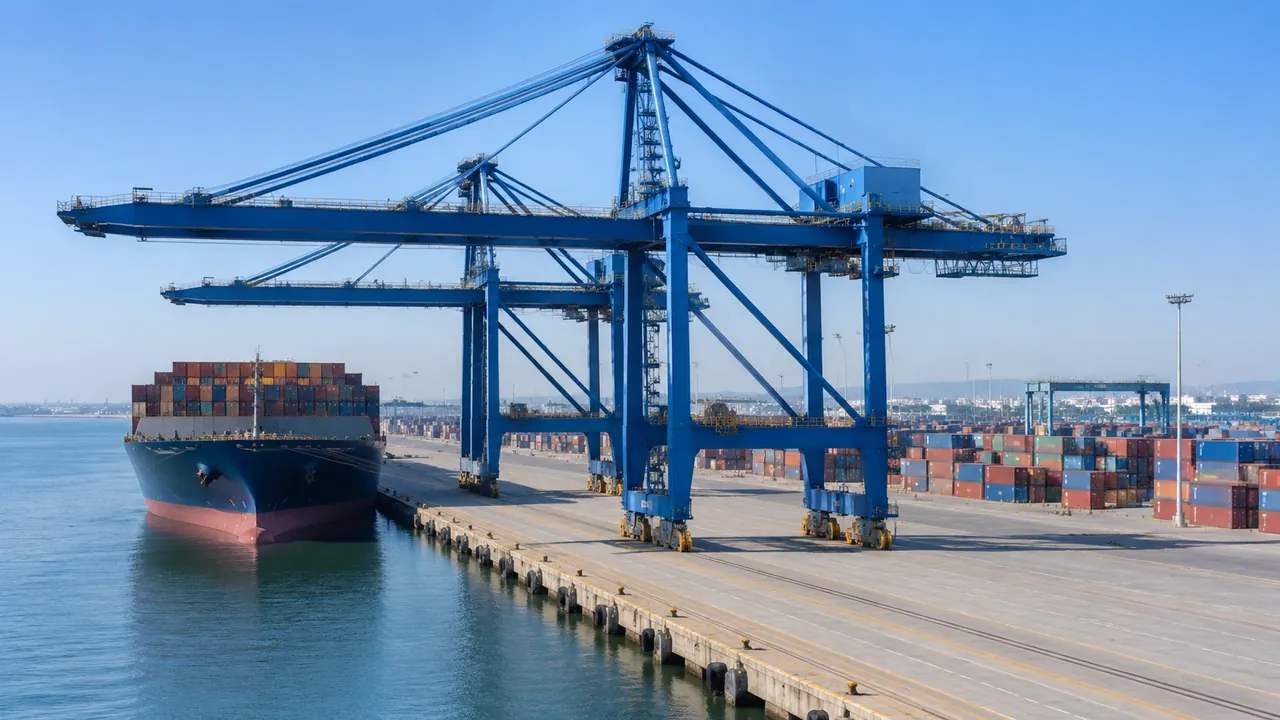
A ship-to-shore crane is machinery. Its geometry, rating and rail gauge come from equipment drawings rather than map imagery, so no part of the generated site covers it. The scene will show an empty quay with water beside it, which can look stark to anyone expecting a busy terminal. Say that in the opening minute of the meeting. An empty berth is honest about what the platform knows, and it gives the crane asset somewhere clean to land. Leave the bare quay in the opening view rather than hiding it behind a placeholder.
2 Getting crane geometry into the scene
2.1 Preparing the asset
Most port teams already hold crane models for layout studies, often simplified to a box with a boom. Check the file before import: units in metres, origin at the rail centre, boom in a known position. Those three choices decide whether the crane lands on its rails or floats a metre above them. Convert to a format the receiving tool reads without loss, and keep a copy of the original. A crane that arrives at the wrong scale is harder to diagnose inside a busy scene than on its own.
2.2 Placement against the quay line
Place the crane with its rail line on the quay edge, then check the outreach over water and the backreach over the apron. The scene shows both relationships clearly from above and from the water side. Where the quay line in the model differs from the drawing by a metre or two, trust the drawing and note the difference. That note is the kind of detail an operations reviewer will ask about, and having it ready shortens the conversation. Place one crane before placing six, so a placement mistake costs one correction rather than a morning.
3 Checks before the meeting
3.1 Origin, scale and orientation
Open the GLB in the target application before anyone else does. Check that north is where you expect, that the ground sits at a sensible elevation, and that the quay edge runs in the direction the drawing shows. A rotated site is easy to miss on screen and awkward to explain in a meeting. Take a screenshot of the import settings as well, since the next person will need them. If the receiving project has its own coordinate system, agree the origin with that team early, because fixing it later means re-placing every asset.
3.2 File weight and scene structure
Site exports are usually lighter than design models, but a long stretch of waterfront with dense vegetation can still be heavy. Check the file size and the frame rate in the viewer the review will use, especially if the audience joins on a laptop over a call. Ask whether the receiving team wants one scene or separate objects, since some workflows treat the import as a single mesh. That answer changes how you prepare the export, not just how you send it.
4 Limits
4.1 No reach, load or clearance check
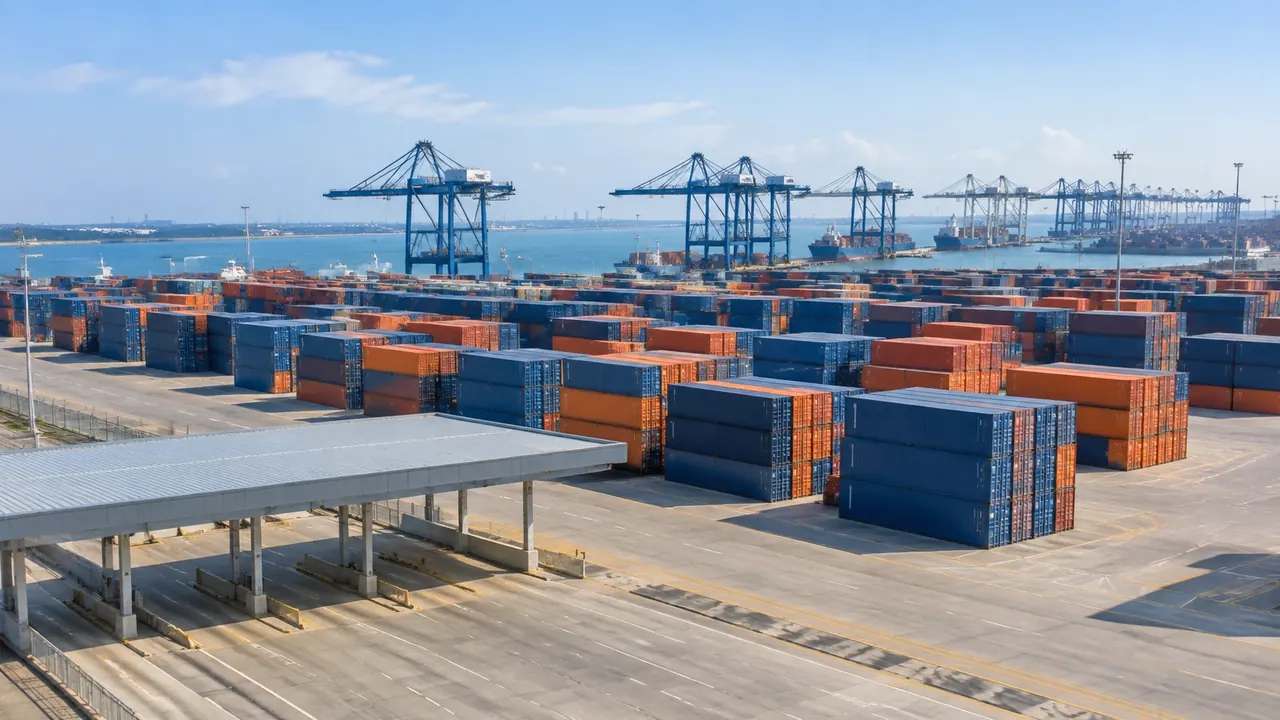
The file does not check crane reach, lifting capacity, rail loading or clearance envelopes. Those come from the equipment data and the operating rules that govern the berth. A crane outline placed on the quay illustrates a layout idea and nothing more. Keep the load charts and the structural checks with the people who own them, and keep the scene in the role of context. Blending the two in one slide is where misunderstandings start. If the review needs a reach diagram, draw it in the tool built for it and show the result as a separate image.
4.2 Imagery date and quay changes
Quay walls get extended, strengthened and re-fendered, and imagery can lag behind by years. A berth lengthened last season may arrive at its older length, which shifts every crane position you place on it. Check the date of the imagery behind the scene, state it in the handover, and ask the port about recent works. A current drawing plus a dated scene is workable; a dated scene alone is not. If the berth changed shape, place cranes against the drawing and say so in the caption.
5 Running the export review
5.1 A sequence that holds
Start with the terminal in its water setting, then the berth, then the crane positions under discussion. The wide view answers where the terminal sits relative to channels and city, the berth view answers how the quay line runs, and the close view is where equipment appears. That order also makes the absence of cranes obvious at a natural moment rather than as a surprise. If the review covers several berths, keep the same camera height between them so the images compare fairly.
5.2 Handover
Send the GLB with the asset files, not instead of them. The receiving team needs to know which parts came from the platform and which from the equipment library, because the two have different owners and different update paths. A folder with the scene, the cranes and a one-page note stays current longer than a single blended file. If the crane assets change, the site does not need re-exporting. Name the folders by role, site and equipment, so the split survives a change of staff.
Open the GenAnywhere app and frame a berth for export
6 Before you export
6.1 Choose the extent
Choose the stretch of quay the review needs. One berth with its shed and gate shows the working frontage, while a whole terminal shows land use but thins the detail. Frame to the question, name the boundary features, and put the extent in the note. If two berths are being compared, export the same extent for both so the images can sit side by side without a scale argument. A named extent also helps when someone asks for the same view three weeks later.
6.2 Keep ownership clear
Crane models often come from a supplier or a consultant, and their terms travel with them. Keep the platform export and the crane files in separate folders so the licence of each stays readable. The site export carries a permanent commercial licence for use in your projects, while resale of the raw files and use for training models sit outside it, and the authorization statement sets out those terms. Mixing files makes that boundary harder to explain later.
6.3 State the purpose
Say what the GLB is for: a crane replacement study, a visual review of a berth extension, a scene in a real-time viewer, or a comparison in a GIS. Each purpose suggests a different level of detail and a different receiving team. Write the purpose into the handover note, next to the extent and the imagery date. A file with no stated purpose is a file nobody opens twice. Write it down before the export, not after someone asks why the file exists.
7 FAQ
FAQ-1 Does GenAnywhere support GLB export?
Yes. A generated site can be previewed and exported as a GLB for 3D, BIM, GIS and game engine workflows. The file carries terrain, water, vegetation and building masses plus your edits. Import behaviour varies by application, so test it before a review depends on it, and check origin and scale once the file lands in the target tool. Keep the original scene so a re-export takes minutes rather than a rebuild.
FAQ-2 Will the quay cranes be in the export?
No. Cranes are equipment and design assets, not generated content. They come from your library or a supplier model and are placed after import. The export gives them a berth, water and sheds to sit against. Tell the receiving team which crane files accompany the scene, so nobody assumes the machinery travels inside the GLB. Name them in the same note that lists the extent and the imagery date.
FAQ-3 Can the file open in Revit, ArcGIS Pro or Unity?
Those workflows are documented directions on the GenAnywhere site, and the export is a general scene format that several applications read. How it arrives depends on the product and the version: some tools treat it as a background mesh, others as a set of separate objects. Test in the application your team actually runs. For BIM and GIS work, treat the file as a workflow input rather than a native model.
FAQ-4 Can we reuse the export in client projects?
The export comes with a permanent commercial licence for use in your work. Reselling the raw files, using them to train models, or claiming full ownership of the underlying data sits outside those terms. If a client needs the site in their own environment, read the terms before you pass files on, and keep the platform export apart from supplier crane assets that carry their own conditions.
See how a generated terminal moves into a GLB workflow
Content and technical notes
This article was prepared by the GenAnywhere team with AI-assisted drafting and human review.
Product features, formats, and availability change as the platform evolves; refer to the official GenAnywhere website for current details.
For technical questions or corrections, contact support@genanywhere.com.
Last reviewed: 2026-11-13.