
Quay cranes and yards: how GenAnywhere layers both
A terminal review needs the quay line, the water and the yard in one frame; the generated site supplies the setting, not the machinery.
GenAnywhere builds a 3D site model from map and satellite data, and at a port that model includes the quay line, the water beside it and the buildings behind it. Quay cranes and container stacks are equipment, so they sit outside the generated set. The pages below explain what the scene contains, where the equipment comes from, and what to settle before anyone treats the picture as an operational claim.
1 What the generated terminal includes
1.1 The quay line and the water edge
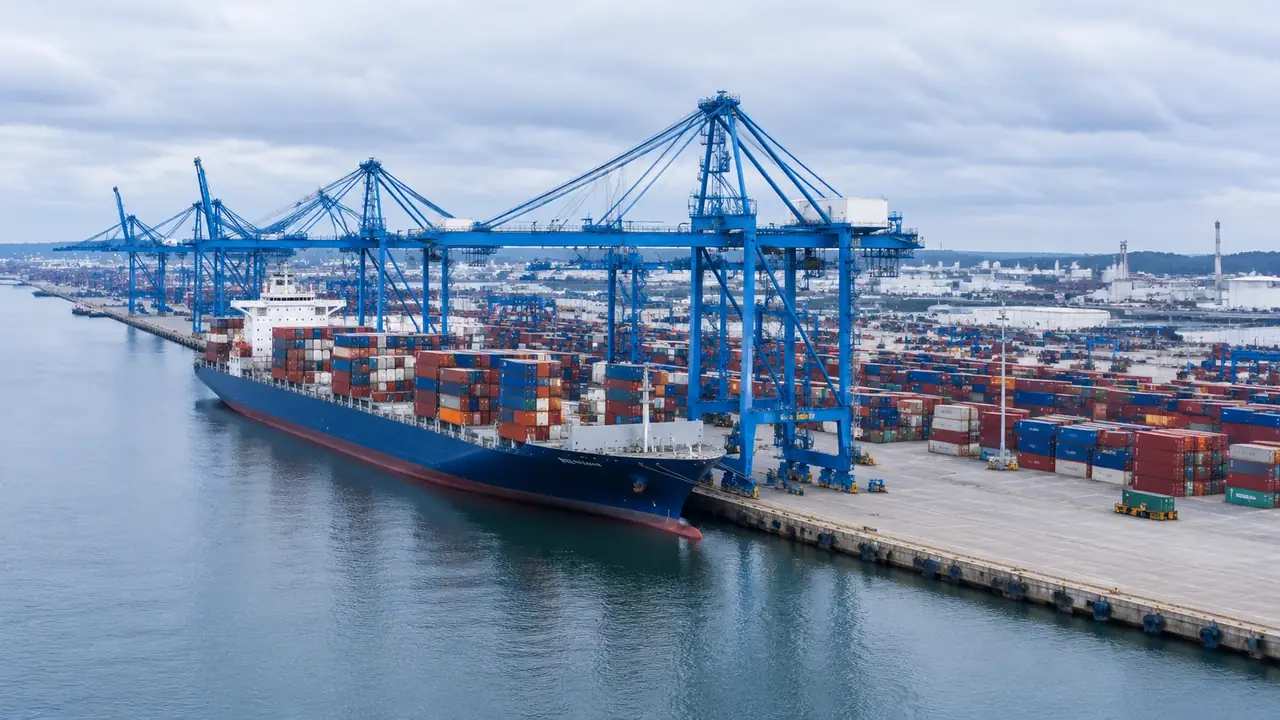
The water edge is generated where the mapped shoreline meets the terrain, so the quay line appears as a continuous boundary between land and water. Width and alignment follow the source data, which means a berth extended last season may still be drawn at its older length. The edge is a vertical face in the model rather than a detailed wall with fenders and bollards. Use it to orient the review, and check the berth length in a drawing before you quote it in a meeting.
1.2 Sheds, gates and yard buildings
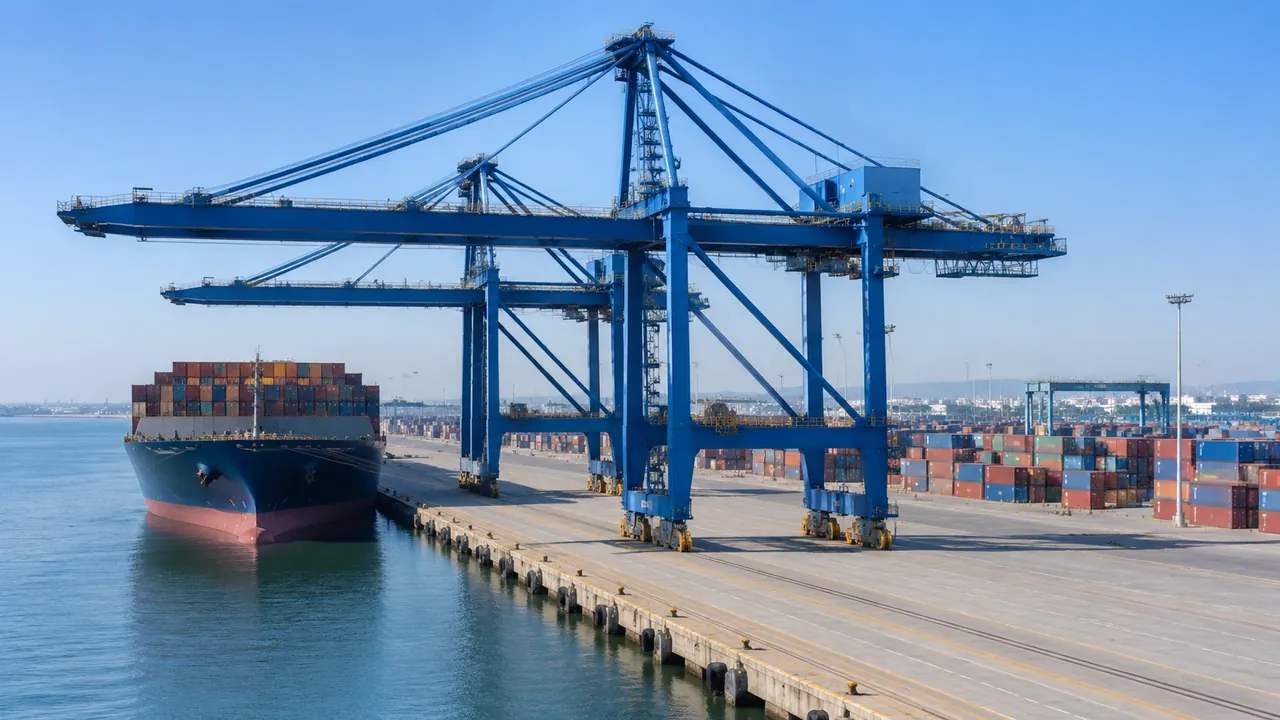
Warehouses, gatehouses, workshops and office blocks normally appear because they have footprints in the map data. Heights are estimated and building types are inferred, so a long shed may be read as a warehouse while a small gatehouse may read as an office. Both are editable, which matters when the terminal has changed since the imagery was captured. Walk the yard in the scene, then correct the buildings you know are wrong.
2 How cranes and stacks fit the scene
2.1 Cranes as equipment, not generated content
Ship-to-shore cranes and yard gantries are equipment, and the platform's generated content covers the site rather than the machinery. The product documentation describes buildings, terrain, water and vegetation, not crane geometry. Plan to bring crane and stack models from your own asset pipeline, or represent them as simple masses in a diagram beside the scene. Saying this at the start prevents a review from waiting for geometry that will not arrive. The platform overview sets out the same boundary in shorter form.
2.2 Where yard layout gets reviewed
Yard layout is usually argued with a plan, and the 3D scene supports that argument by showing ground, sheds and the surrounding city together. You can see how a stack would sit against a warehouse wall, how a gate relates to the road, and how much open ground remains between them. The scene does not measure capacity, but it does show whether the arrangement looks plausible from the angles people actually use. That is often enough to settle an opening question before anyone opens a planning tool. If the layout is still open, try two arrangements and compare the screenshots side by side; the scene will not say which is cheaper to operate, but it will show which one leaves the ground readable.
3 Edits that help a terminal review
3.1 Replacing and adjusting buildings
Buildings can be replaced individually, moved, rotated and adjusted in height or type. A shed scheduled for demolition can be swapped for an empty footprint, and a new gatehouse can be raised to test how it reads from the road. Edits are quick enough to try two options in one session, which is useful when the argument is about massing rather than detail. Keep a note of which version each screenshot came from, because a review can turn on a change nobody labelled. A dated file name and a one-line caption are enough to keep the options apart.
3.2 Layer views for berth and yard
Buildings, terrain and vegetation can be previewed and managed as layers. Hiding vegetation clarifies the yard edge; hiding buildings shows the ground and the quay line without clutter. Reviewers can move between views without rebuilding the scene, which keeps a workshop moving when time is short. Show the layer state when you share a screenshot, because a view with buildings hidden can look like an empty site to someone who joins late.
4 Limits to state before the meeting
4.1 No lifting, clearance or throughput analysis
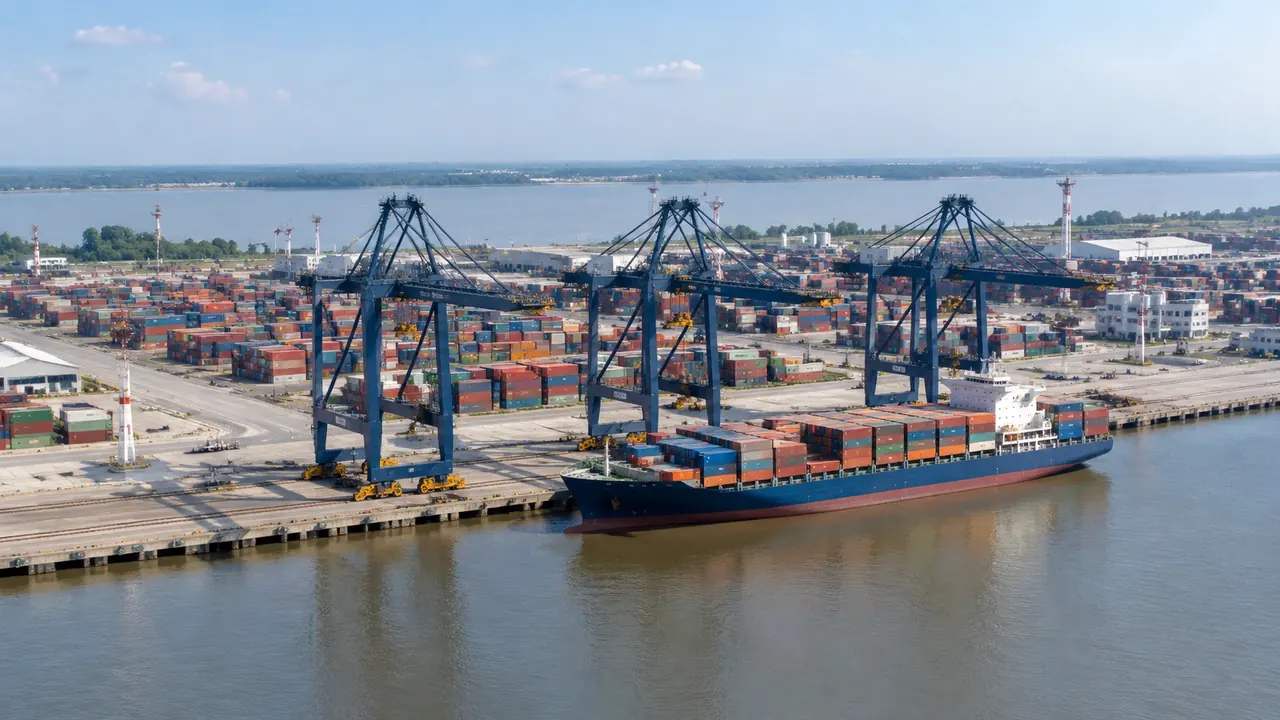
The scene does not check lifting capacity, crane reach, clearance envelopes or terminal throughput. Those questions need equipment data, operational rules and a specialist study, none of which come from map imagery. A crane outline placed beside the scene is an illustration, not a verification. State that plainly, especially when the audience includes operations staff who will read a realistic image as an engineering claim. Organisations such as PIANC publish the kind of technical guidance that belongs with those questions.
4.2 Imagery date and berth changes
Ports change quickly: a berth is lengthened, a shed is replaced, a yard is resurfaced. The imagery behind the scene has a date, and anything built after that date will be absent. Check the date for the terminal area before the review and mention it in the opening slide. A current drawing plus a dated scene is a workable combination; a dated scene presented as current is not, however good the render looks.
5 Running the review
5.1 A sequence that keeps the argument clear
Start wide enough to show the terminal in its city and water setting, then move to the quay line, then to the yard. Each step answers one question: where the terminal sits, how the berth meets the water, how the yard is arranged. Jumping between scales makes the audience work harder than they need to. A short sequence also makes it obvious which view supports which decision, and which view is there just for orientation. Keep the wide view on screen as a small inset if the software allows it, so nobody loses the setting while the detail is discussed.
5.2 Handing the scene to the next team
Preview the scene and export a GLB when the review moves on. The file gives the next team the site context in a form that 3D, BIM, GIS and game engine tools can open, where it can sit beside design geometry. Import behaviour varies, so test the file in the receiving application before a meeting depends on it. Add a note on what the export contains and what it leaves out, so the second team does not repeat the earlier team's questions.
Open the GenAnywhere app and frame a terminal scene
6 Before you export
6.1 Agree the quay length in scope
Decide how much of the quay the review covers and frame the scene to match. A single berth shows crane positions and shed frontage clearly; a whole terminal shows land use but loses the edge detail. Choose according to the question, and write the choice into the agenda. If two questions need two extents, take two screenshots rather than one compromise that answers neither well.
6.2 List the equipment that is missing
Cranes, stacks, straddle carriers and trucks are not in the generated scene. List them in the handover so the next team knows what to add and where. A simple list is more useful than a disclaimer buried in an email. It also tells the audience which parts of the picture are context and which parts are illustration, which is the distinction most likely to be lost in a polished render. If the receiving team plans to add the equipment itself, note which asset library and file format its pipeline expects.
6.3 Decide what the GLB is for
An export with no stated purpose becomes a file nobody opens. Decide whether the GLB is for a massing study, a visual review, a game engine scene or a GIS comparison, and say so in the handover. The receiving team can then prepare the right environment and the right assets. If the purpose changes later, re-export rather than stretching the old file past what it was made for.
7 FAQ
FAQ-1 Does GenAnywhere generate quay cranes?
No. The generated scene covers the site: terrain, water, buildings and vegetation. Quay cranes and yard equipment are separate assets that a team brings from its own library or represents as simple masses. Describe them as illustrations in the review, and keep the engineering claims with the equipment data. The platform gives the setting in which those assets are discussed, not the assets themselves. A crane added in another tool remains that tool's asset, not an output of the site model.
FAQ-2 Can I show container stacks in the scene?
Not as generated geometry. Container stacks are equipment and cargo, not part of the site model that the platform builds from map data. Teams usually show them with their own assets or with simplified blocks in a diagram. If the review just needs to discuss ground use, the empty yard in the scene may be enough, and it is honest about what the model knows. Say which elements came from outside the platform when you present the scene.
FAQ-3 Can the model support a lifting plan?
No. Lifting plans depend on crane capacity, radius, load charts and site rules, and the scene holds none of that. Use the model for context and keep the lift analysis in the tool and with the people qualified to run it. A convincing image is not a substitute for a checked plan, and the review should say so before the image is shown. Keep the two documents separate so the plan keeps its own checks.
FAQ-4 What do I get at the end?
A previewable 3D scene and an exported GLB carrying site context for 3D, BIM, GIS or game engine workflows. The export does not include cranes, stacks or operational data. Test it in the receiving tool and pair it with the equipment assets your review needs. If the file is going to a team that expects a full terminal model, set that expectation before the handover rather than after. A short note on the file's contents saves that conversation.
See how a generated terminal moves into a GLB workflow
Content and technical notes
This article was prepared by the GenAnywhere team with AI-assisted drafting and human review.
Product features, formats, and availability change as the platform evolves; refer to the official GenAnywhere website for current details.
For technical questions or corrections, contact support@genanywhere.com.
Last reviewed: 2026-11-13.