
Crane edits: what GenAnywhere lets teams adjust
Crane work changes the ground, the sheds and the access around it; the crane itself is a design asset, not a scene object.
GenAnywhere adjusts buildings and layers, not cranes. A building can be replaced, moved, rotated and given a new height or type, and terrain, buildings and vegetation can be switched on and off as layers. If the question is about a crane, the scene supplies the ground it stands on and the buildings it works beside, and the crane arrives from a design model.
1 Where the edit set stops
1.1 What a building edit covers
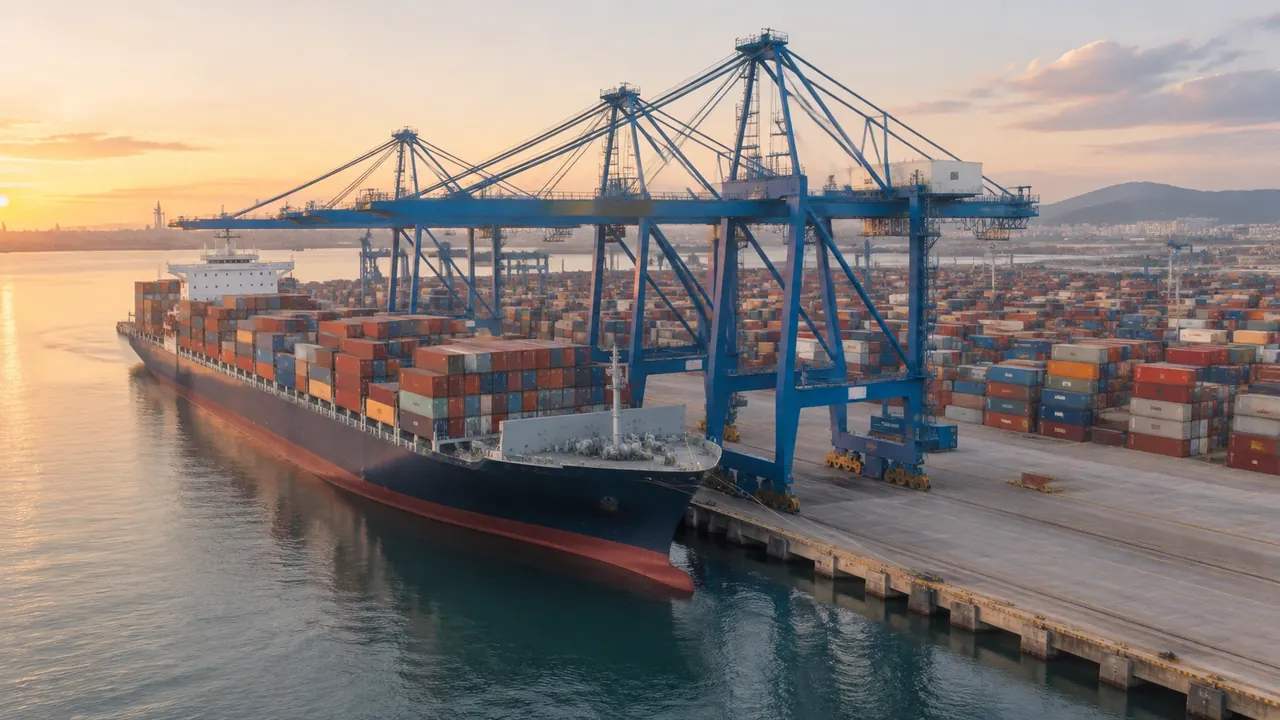
Four changes are available on a building: replace it, move it, rotate it, or alter its height and type. That set covers most of what a site review asks, because sheds, gatehouses and workshops are usually what moved since the imagery. A crane bay is different. Its ground can be edited, and the machine above that ground is not generated content. Rail beams and hardstanding read as ground detail, so a change there is a terrain or building edit. Knowing the boundary before a session starts saves an hour of hunting for a control that does not exist.
1.2 Layers as a second edit surface
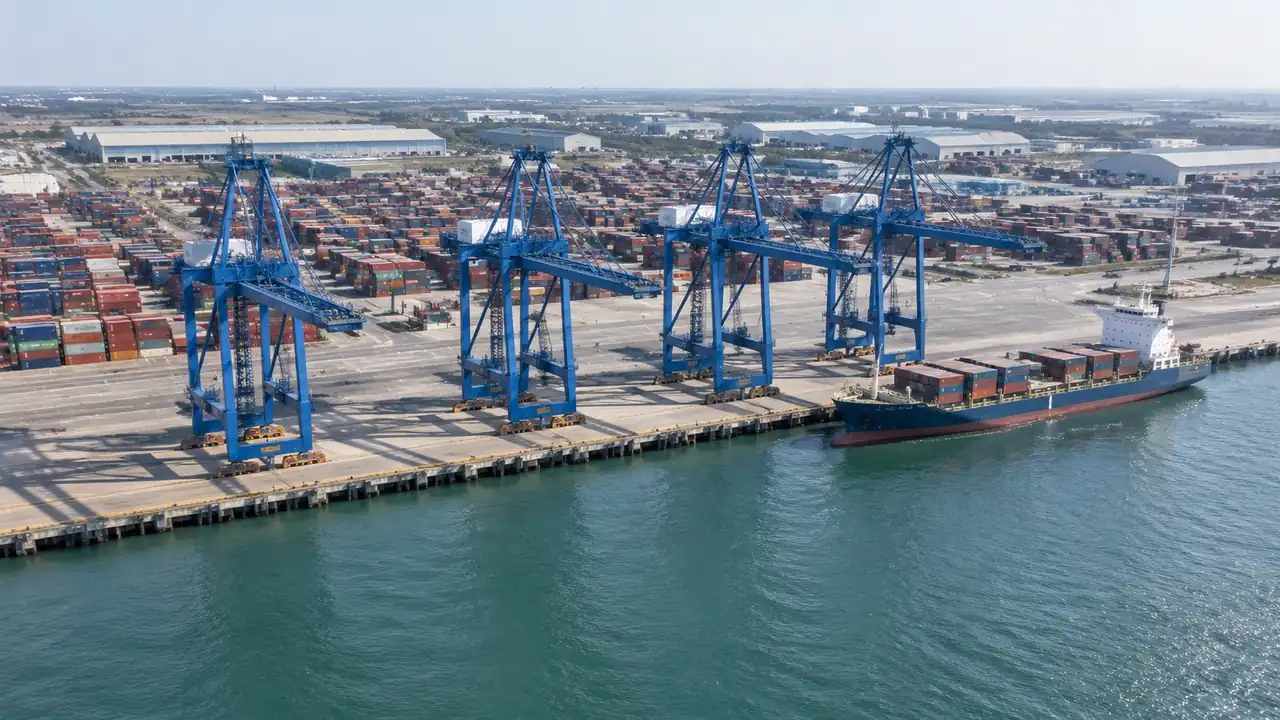
Terrain, buildings and vegetation can be previewed and managed as layers, which is a second way to change what a review sees. Turning vegetation off exposes the yard edge; turning buildings off leaves the ground and the water line. Neither switch adds equipment. A common pass is buildings off to read the ground, then buildings on with vegetation off to read the built edge. Note which layers were visible when a screenshot was taken, because a stripped view can mislead someone who joins later.
2 Why cranes sit outside it
2.1 Equipment arrives with the design
Cranes come from the design side: a manufacturer file, a terminal asset library or a simple block built to the right envelope. The documented output covers terrain, water, buildings and vegetation, and crane geometry is not on that list. Teams that plan for this early lose less time. Ask the crane supplier or the terminal engineering group for a model in a format the downstream tool reads, and bring it in there rather than waiting for the site scene to produce one. Where no model exists, a block built to the boom length and rail gauge holds a place in the view.
2.2 What a crane leaves behind in the scene
The scene still shows what a crane needs: a quay edge, a rail beam line on the ground, a yard behind it and sheds within reach of the boom. Those are generated or editable, and they carry most of the early argument about whether a new crane fits the berth. A boom that overhangs a shed is a question for the drawing, but the arrangement is visible in the scene. Note where the scene and the equipment drawing disagree, because the two will be compared in the meeting.
3 Edits that answer crane questions
3.1 Testing a maintenance yard change
A crane maintenance area often needs more hardstanding than the site has. Replace a shed with open ground, move a workshop back by ten metres, and the scene shows what the yard gains. None of those edits touch the crane, and that is the point: the site around the machine is what a team can test before the design is drawn. If the yard gains space, say where it comes from, so nobody assumes the boundary moved. Take two screenshots from the same camera position and put them side by side.
3.2 Clearing a sightline to the quay
Operators care about what they can see from a cab, and a review can use the scene to discuss obstruction from buildings rather than from equipment. Remove a store, lower a workshop, and the change in the skyline behind the quay becomes obvious. The scene does not compute sightlines, and no view from a cab is simulated. What it does show is which building stands between a position and the water. Ask which cab position matters before choosing the camera, because the answer changes with the stand.
4 Limits
4.1 No reach, load or wind check
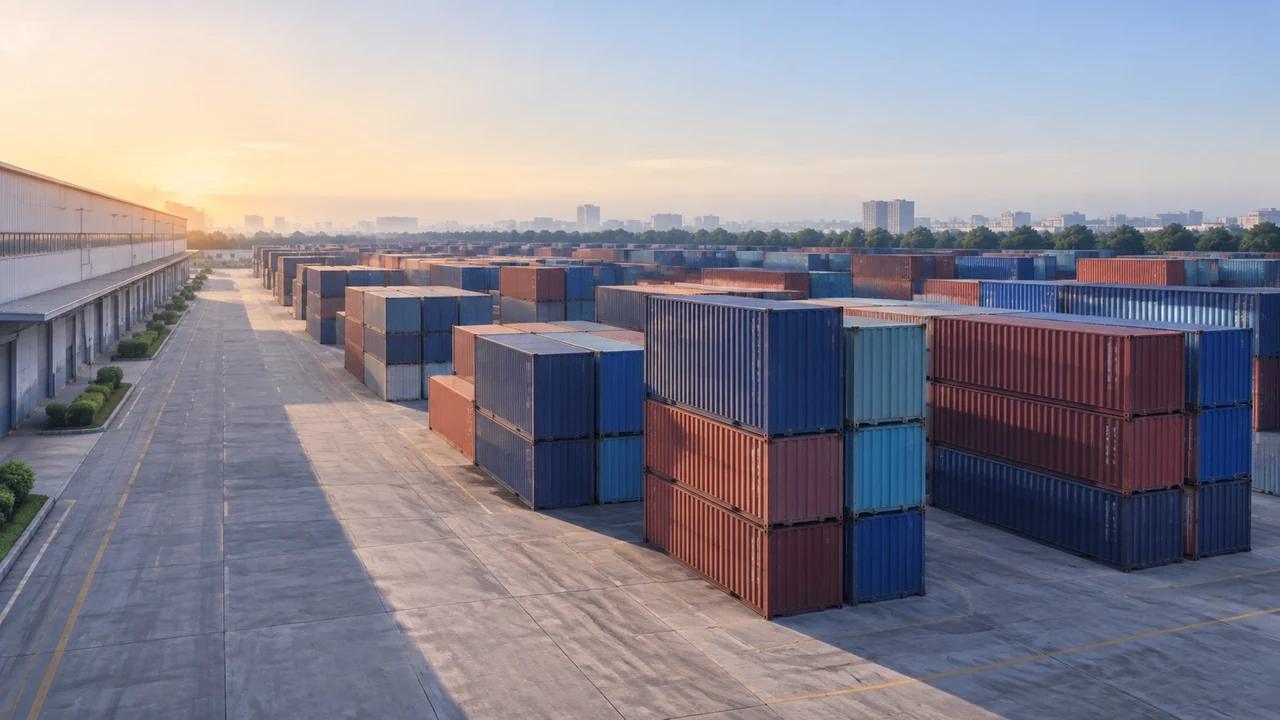
Nothing in the scene checks crane reach, lifting capacity, wind loading or rail tolerance. Those numbers live in load charts, structural calculations and manufacturer data, and they need an engineer to interpret them. A realistic picture of a crane beside a shed can look like a verified arrangement, so label it as an illustration before anyone presents it. Keep the load chart beside the screenshot when both are shown, so the figures are read from the chart rather than from the image. Organisations such as PIANC publish guidance on terminal planning that suits that pairing.
4.2 Imagery date and plant changes
Ports rebuild constantly, and a crane rail installed after the imagery date will be missing from the ground. Check the capture date for the berth and say it out loud at the start of a review. A dated scene next to a current terminal drawing is a workable pair; a dated scene presented as today is not. Where a rail was extended, the older alignment may still read on the ground and confuse the discussion. If the rail line moved, the edit is a building change at most, and the rail itself stays a drawing detail.
5 A working session
5.1 Order of edits
Start with the extent, then the buildings, then the layers. Fixing the extent early stops the camera from wandering, and correcting the buildings means the later discussion is about the proposal rather than about a shed the map got wrong. Layer switches come last, when a specific question needs isolation. Keep a running note of each edit with a timestamp, and name screenshots as you take them. If the session is short, skip the layer pass and write down that it was skipped.
5.2 Recording what changed
Write down which buildings were replaced, moved or resized, and which layers were off in each screenshot. The note does not need to be long. Two lines per image is enough for the next person to reproduce the view. Without it, a review can spend its opening minutes arguing about whether a shed was removed or simply hidden. A shared note in the project folder beats a personal notebook, because a terminal review usually outlives one person's involvement.
Open the GenAnywhere app and set up a crane bay review
6 Passing the scene on
6.1 What travels in the GLB
Preview the scene, then export a GLB. The file carries terrain, buildings and vegetation plus the edits applied, and it opens in 3D, BIM, GIS and game engine tools. Cranes are not in it. Say that in the handover note, because a receiving team that expects machinery will assume the export failed rather than that the boundary was deliberate. The authorization statement covers reuse before the file goes to a third party.
6.2 What the receiving team adds
The next team adds the crane, the spreader, the rail detail and whatever else the review needs. Ask which asset library it uses and which format it prefers, so the site file arrives in a usable state. If the team works in a game engine, the crane may be a simplified proxy; if it works in a design tool, it may need a manufacturer model. The site is the shared part and the crane is the local part. Written down, that split also settles who owns which piece when the work is contracted.
6.3 When to re-export
Re-export when the site changes, not when the crane changes. A new crane model can be dropped into the receiving tool without touching the scene. A new shed, a moved fence or a corrected ground level means the site file is out of date, and the next review should start from a fresh export. Deciding this rule at the start avoids a folder of near-identical files with no way to tell them apart. Keep exports in one folder and merged views in another.
7 FAQ
FAQ-1 Can I edit a crane in GenAnywhere?
No. Cranes are equipment, and the editable set covers buildings plus the terrain, buildings and vegetation layers. A crane model can be placed in the downstream tool once the site is exported, and that is where any change to its position or geometry belongs. Trying to edit a crane inside the scene leads to a dead end. State the boundary in the meeting invitation rather than halfway through a session, and keep the answer the same when someone asks again.
FAQ-2 What can I change on a building?
Replace it, move it, rotate it, and set its height or type. Those four changes cover most site-level questions: a demolished shed, a relocated workshop, a taller office block, a warehouse read as a different use. Each change is quick enough to compare two options in one sitting. Record what you changed, because a review that returns to the same corner later will want to know which version was shown, and two lines per change are enough.
FAQ-3 Can the scene show a new crane bay?
The ground and the buildings around a bay can be edited to represent it, and the crane stays outside the scene. That is often enough to discuss access, laydown space and how the bay sits against the yard. If the bay needs a specific machine envelope, add it in the receiving tool and check the numbers there. Keep the placeholder geometry simple, so nobody mistakes a block for a design. Present the scene as the setting and the model as the subject.
FAQ-4 Does the export include cranes?
No. The GLB carries terrain, buildings and vegetation plus your edits, and it opens in 3D, BIM, GIS and game engine workflows. Cranes, spreaders and rail fittings stay with the team that owns them. Test the file in the receiving application, then merge the equipment assets in that tool. A short list of what the file contains prevents the most common handover question, and that list also works as the agenda for the next meeting.
See how a port site moves into a GLB workflow
Content and technical notes
This article was prepared by the GenAnywhere team with AI-assisted drafting and human review.
Product features, formats, and availability change as the platform evolves; refer to the official GenAnywhere website for current details.
For technical questions or corrections, contact support@genanywhere.com.
Last reviewed: 2026-11-13.