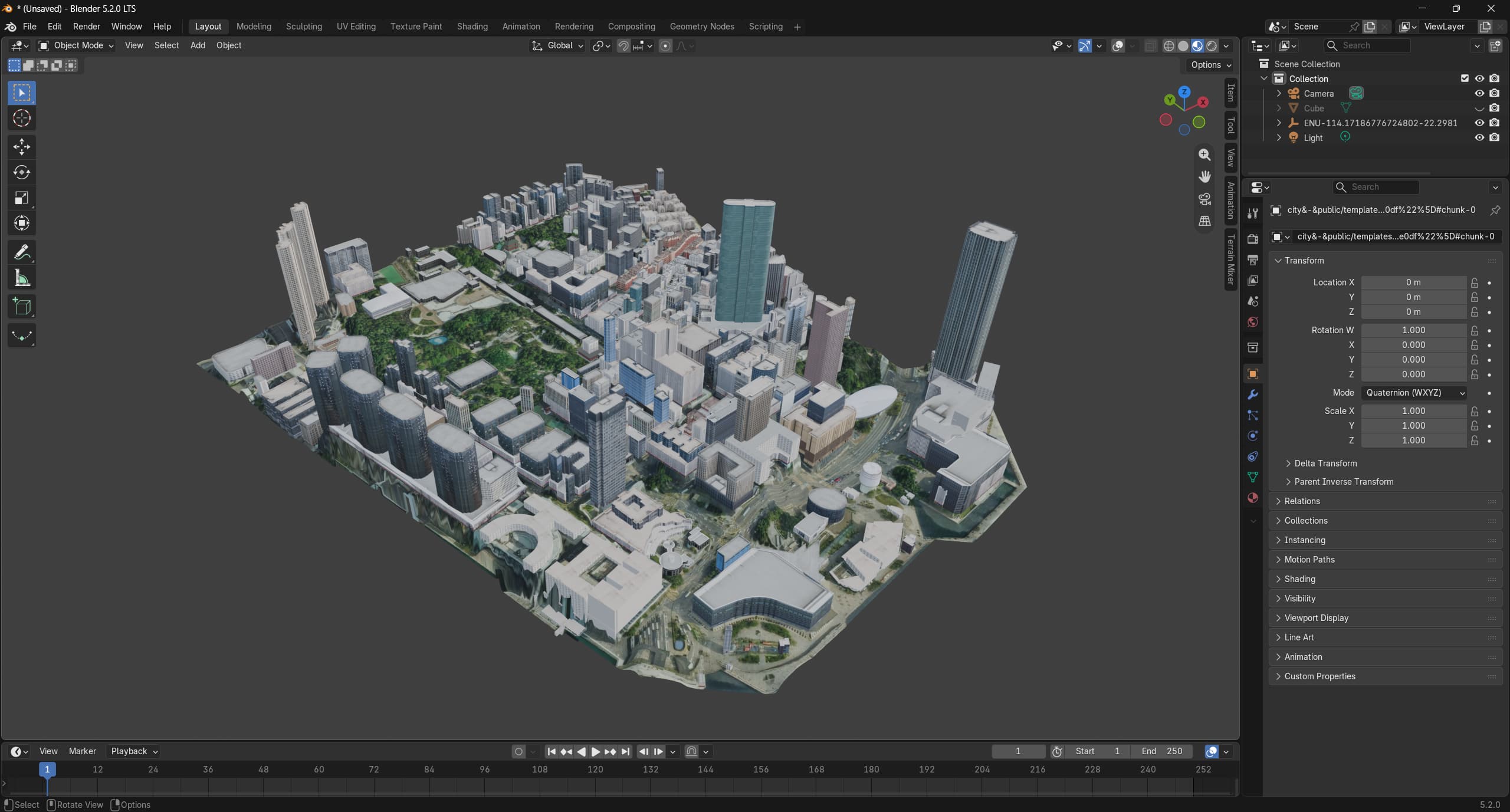
How to Import Models Generated by GenAnywhere into Blender?
GenAnywhere is an AI-powered 3D model generation platform. By simply selecting an area on the map, users can automatically generate 3D models containing buildings, terrain, water bodies, trees, and more. Combining AI recognition with precise manual editing capabilities, it enables the rapid creation of deliverable 3D models from map data. The generated models can be imported into multiple platforms and are widely applicable to digital twins, GIS, game engines, BIM, and other fields, making 3D scene creation more efficient and convenient.
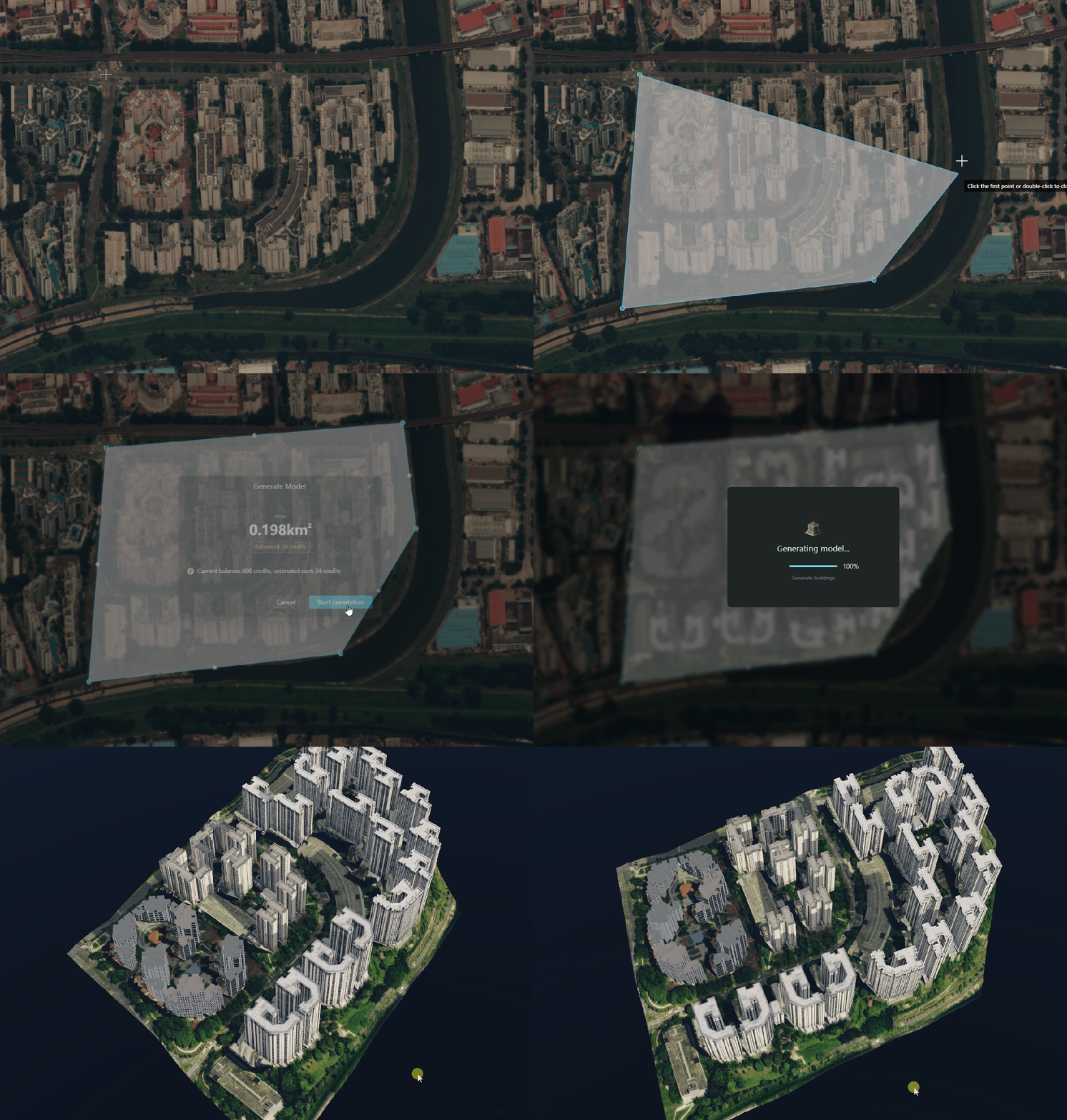
1. Exporting Models from GenAnywhere
After selecting an area on the map in GenAnywhere and successfully generating the model, click the "Export Model" button at the top. In the pop-up window, you can customize the export format and select which model components to export. Both individual exports of single-area models and combined exports of multiple-area models are supported.
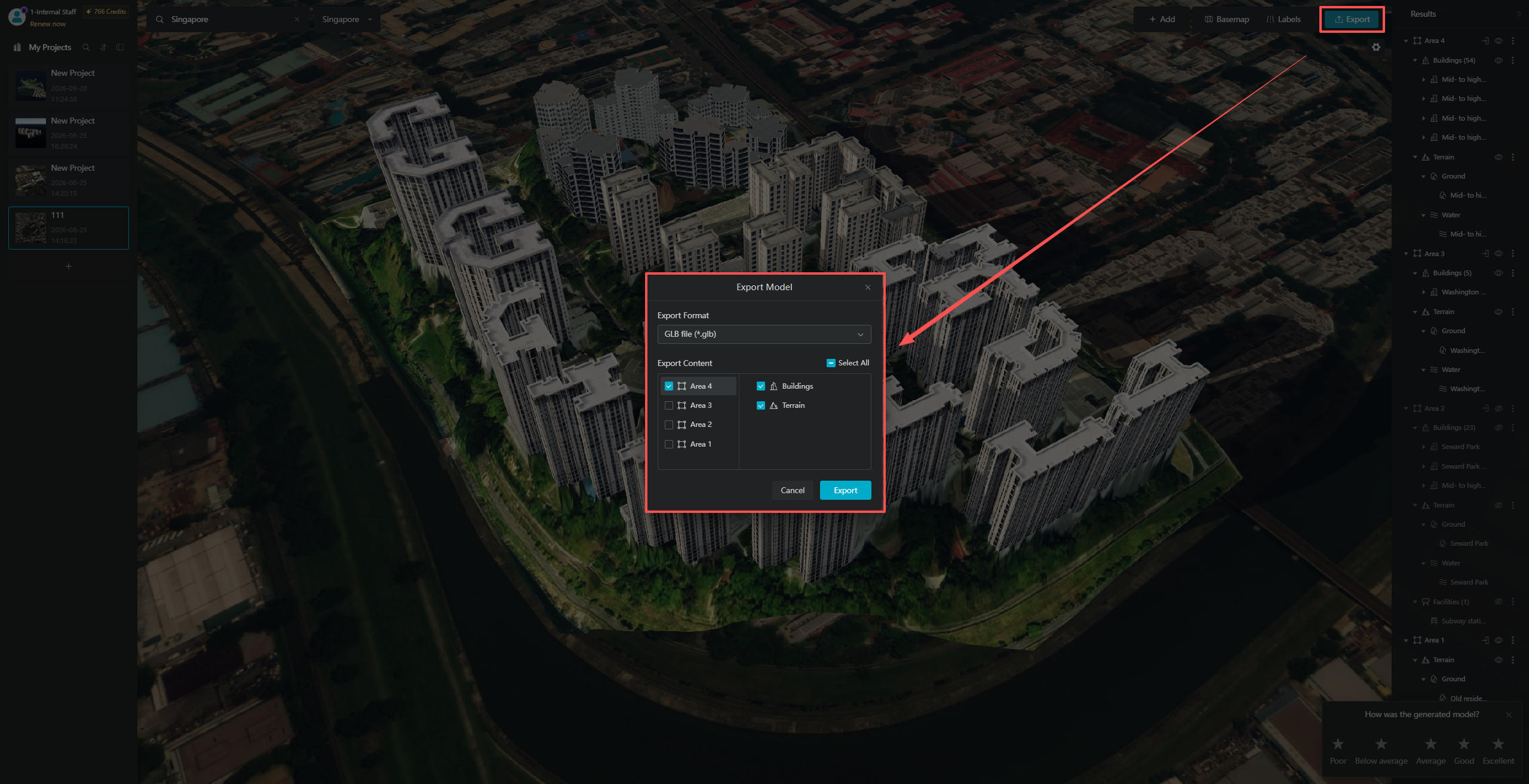
2. Importing Models into Blender
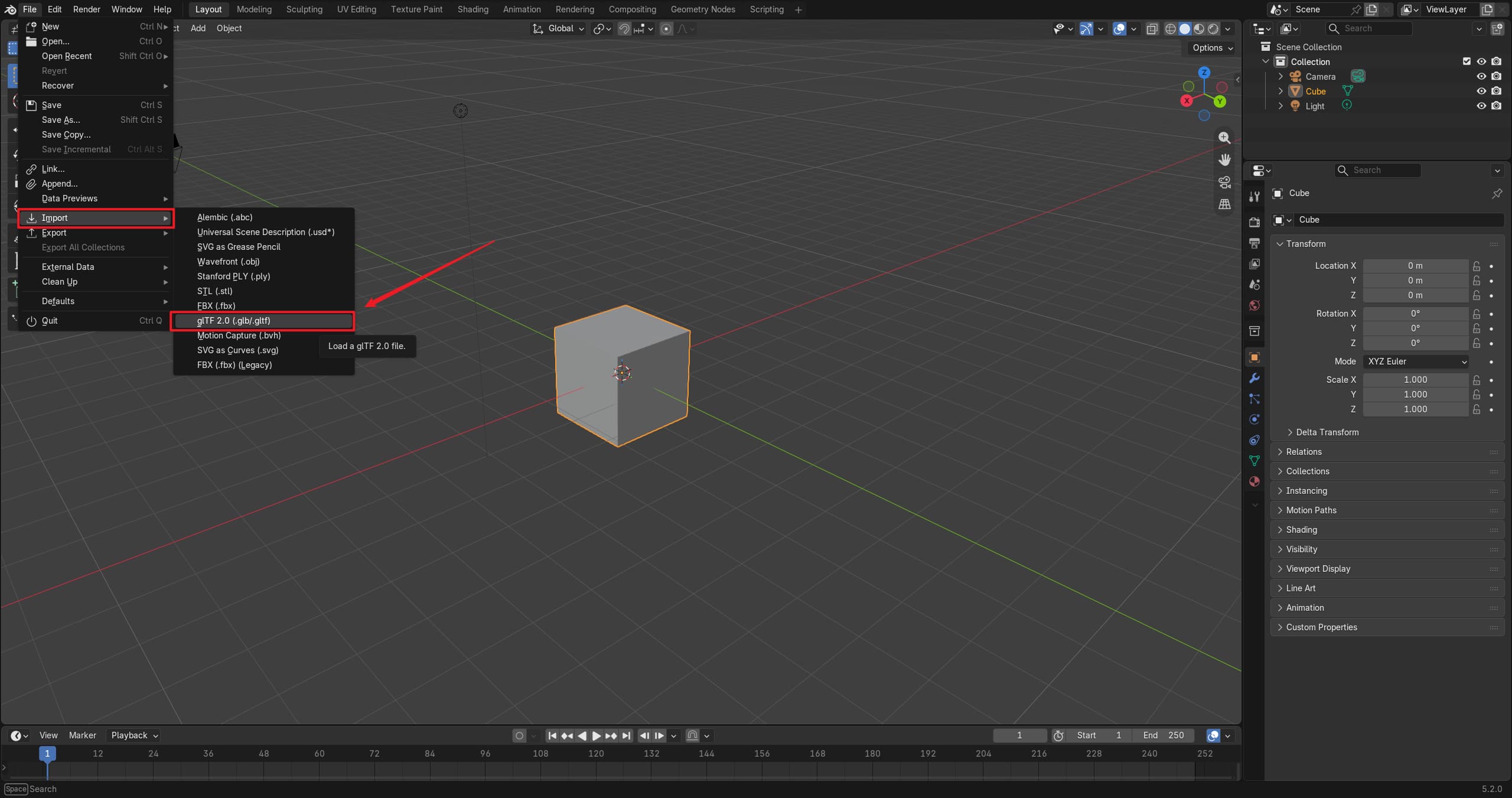
Next, open Blender and click "File" in the upper-left corner of the top menu. In the pop-up menu, select "Import", then choose "glTF 2.0 (.glb/.gltf)" to import the file.
Once the file has been successfully imported, you can edit the model.