How to Search for Projects in GenAnywhere?
As you use GenAnywhere and accumulate more projects, your project list can quickly grow to dozens of entries. Every time you need to find a specific project, you may have to scroll up and down, comparing thumbnails and creation dates one by one. This can be quite time-consuming.
To solve this problem, GenAnywhere has added a project search feature to the project panel on the left side of the interface, helping you quickly filter projects by name. Here's how to use this feature.
1. Open the Project Search Tool
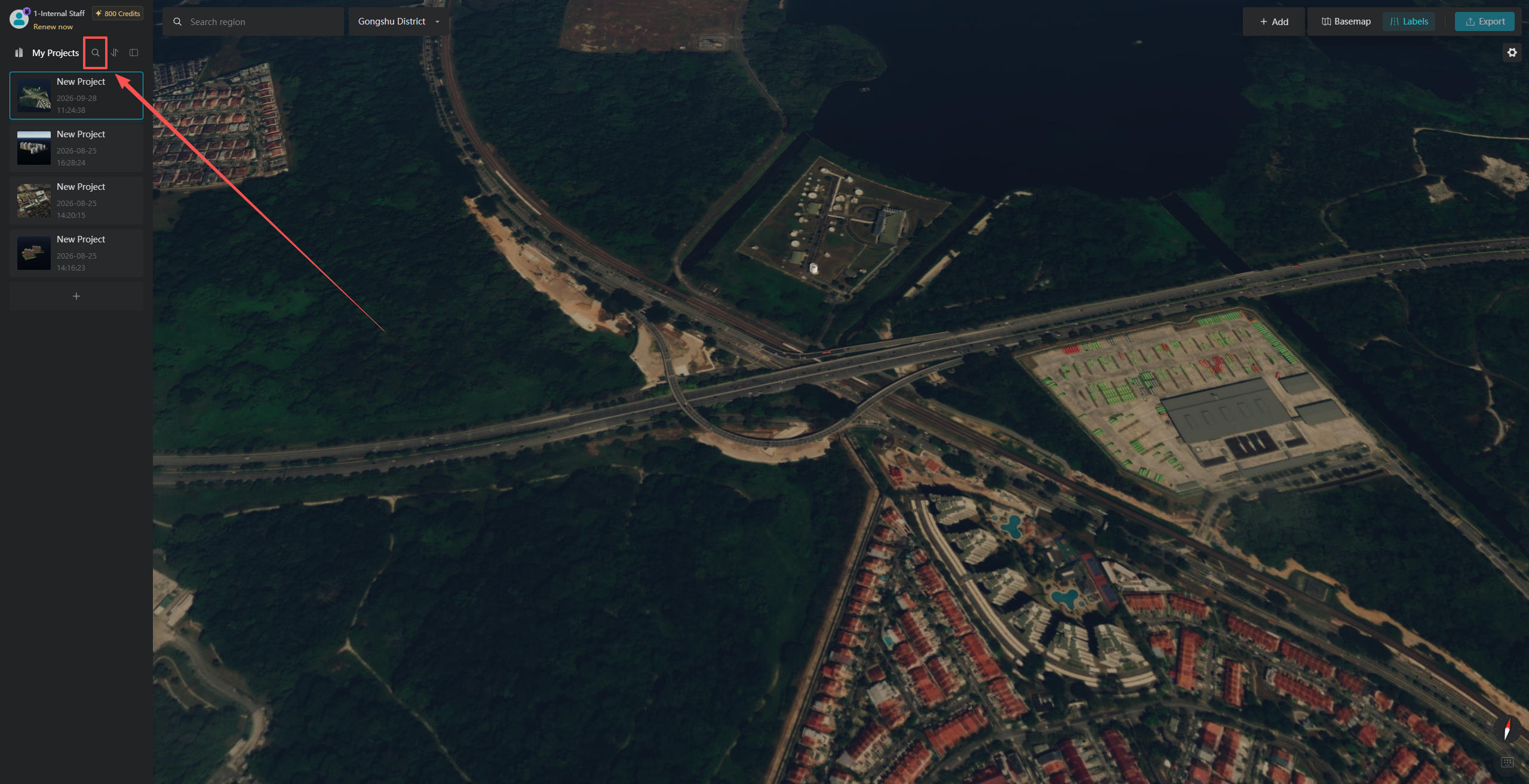
When you need to find a previously generated model project, click the search icon in the upper-right corner of "My Projects" on the left side of the interface.
2. Enter Keywords to Filter Projects
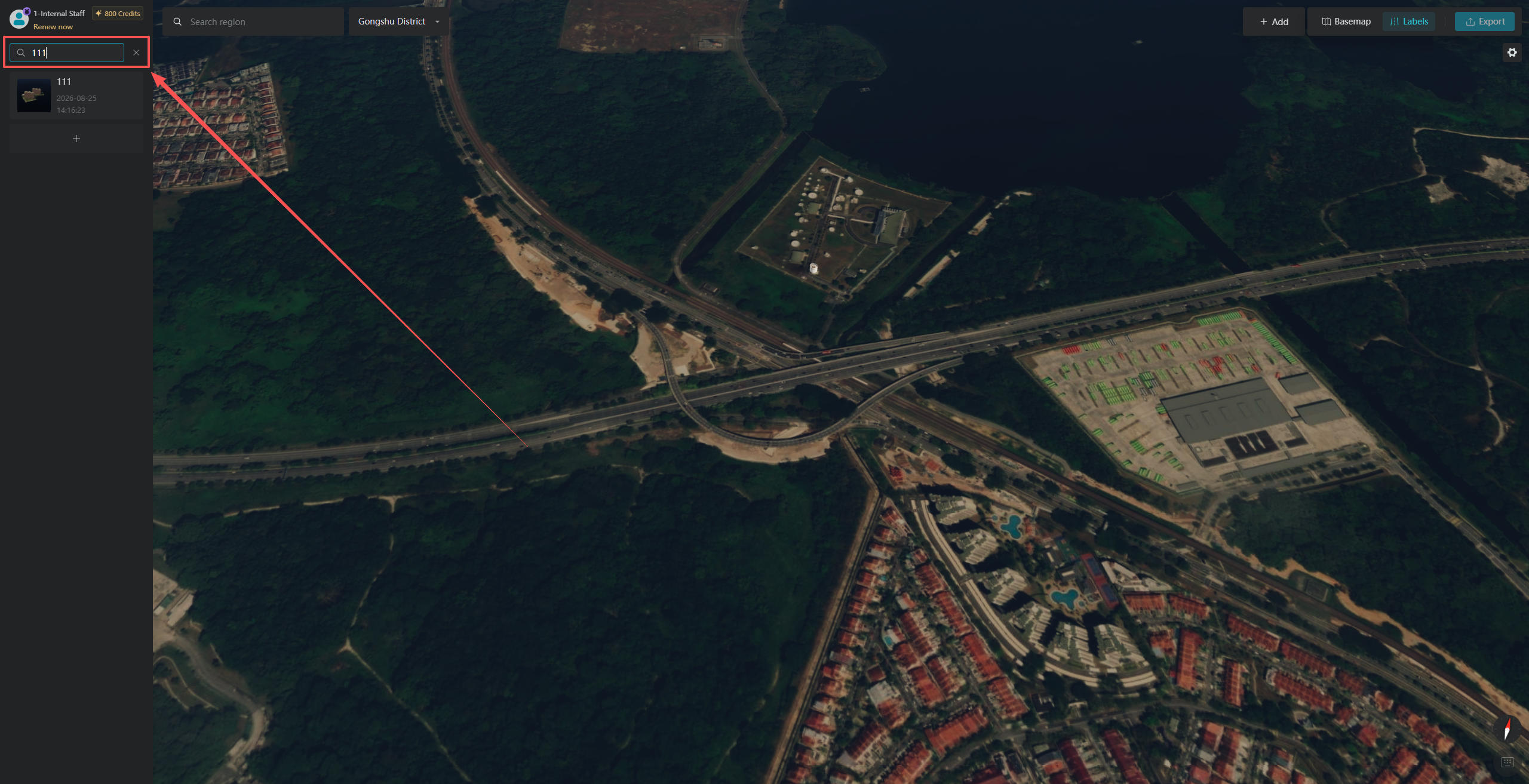
In the pop-up search box, enter a keyword from the project name. GenAnywhere will automatically filter the project list, displaying only projects with matching names and hiding unrelated ones.
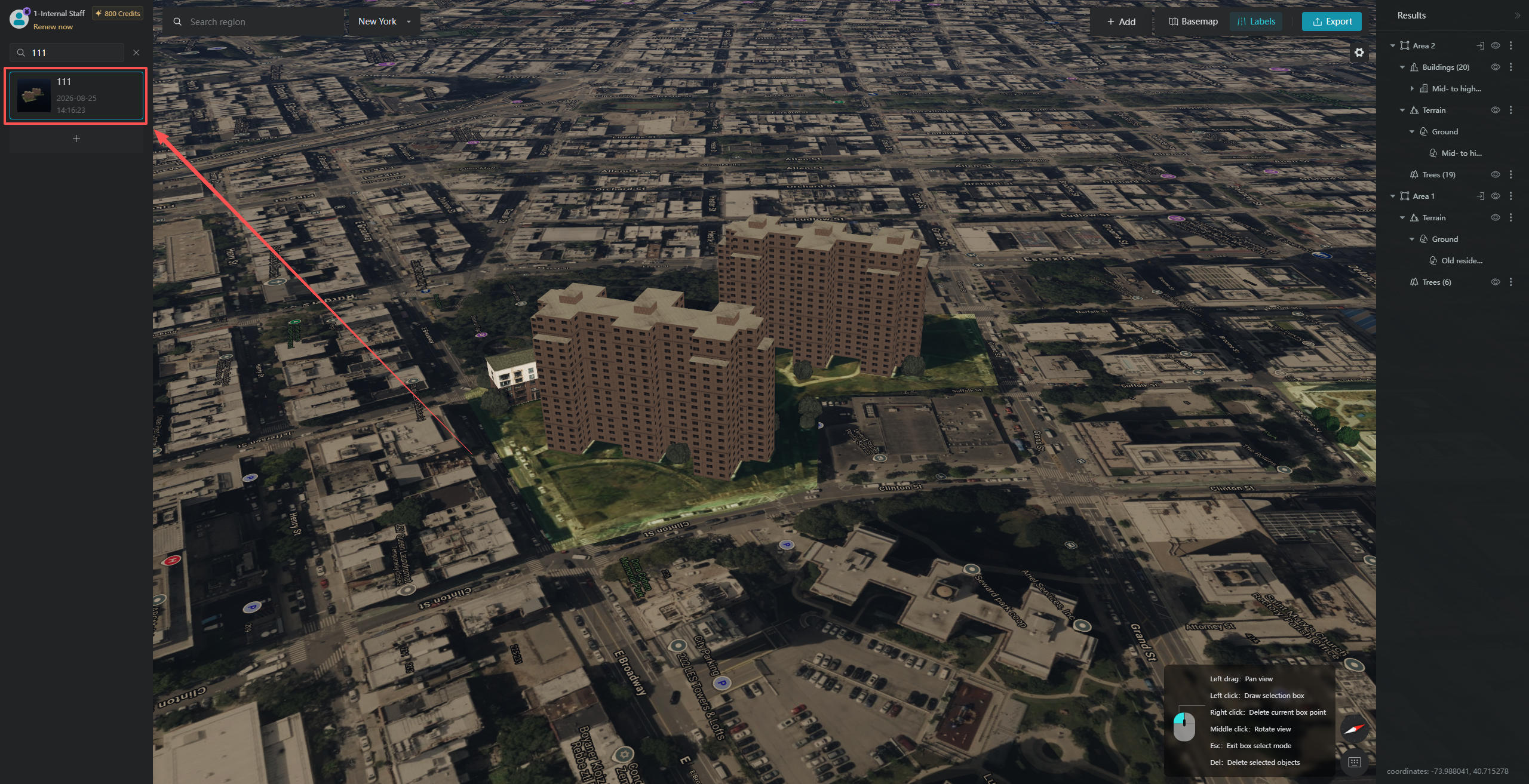
After searching by keyword, matching projects will appear below the search box. Select the project you need from the list, and the main map preview window will automatically navigate to that project and display the previously generated 3D city model.
3. Search for Other Projects
If you need to search for another project, there's no need to return to the original interface. Simply enter a new keyword directly into the search box.
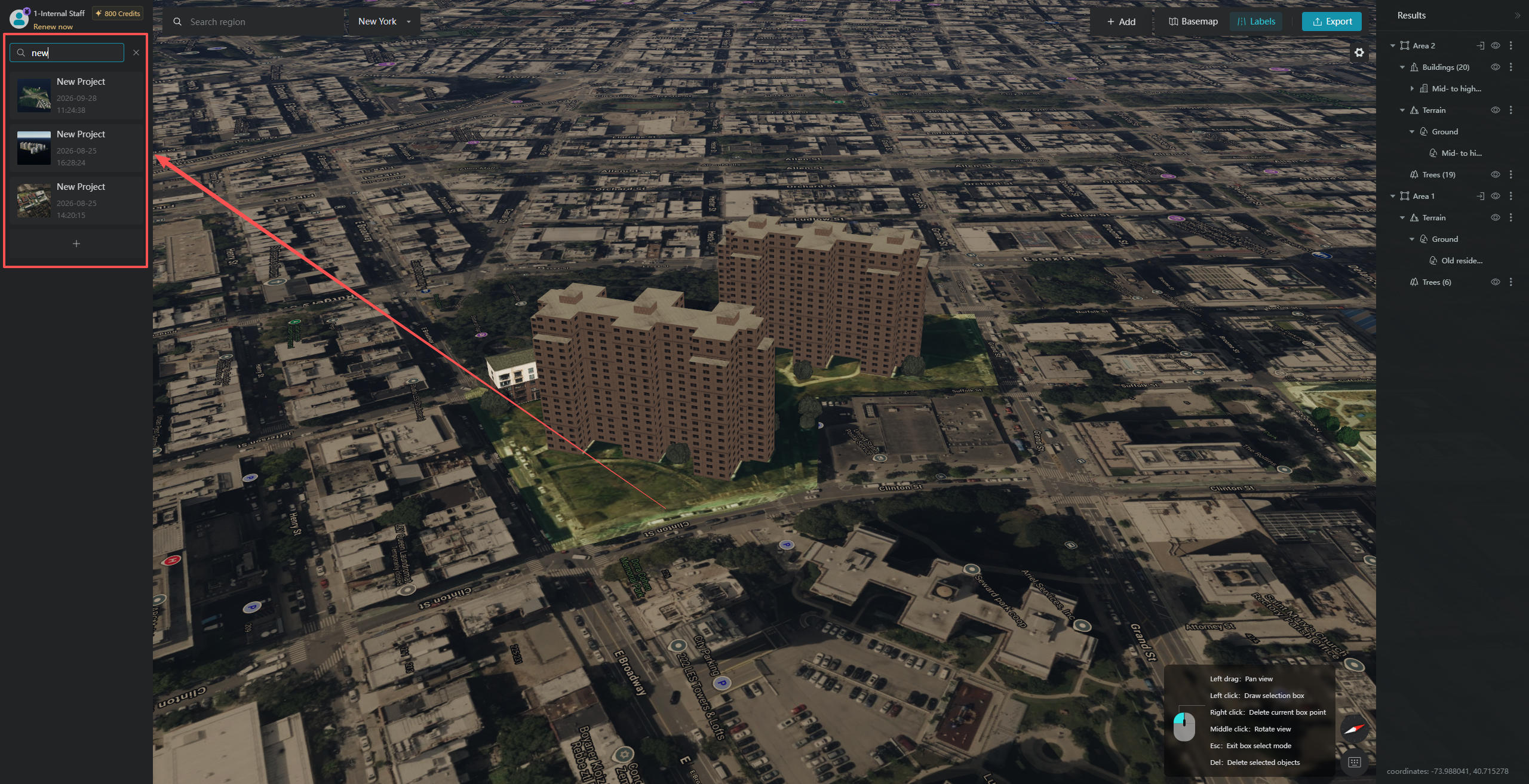
4. Close the Search Feature
When you no longer need to search, click the "Close" button on the right side of the search box to exit the search function. Even after closing the search box, the project you selected and the model displayed in the main map preview window will remain unchanged.
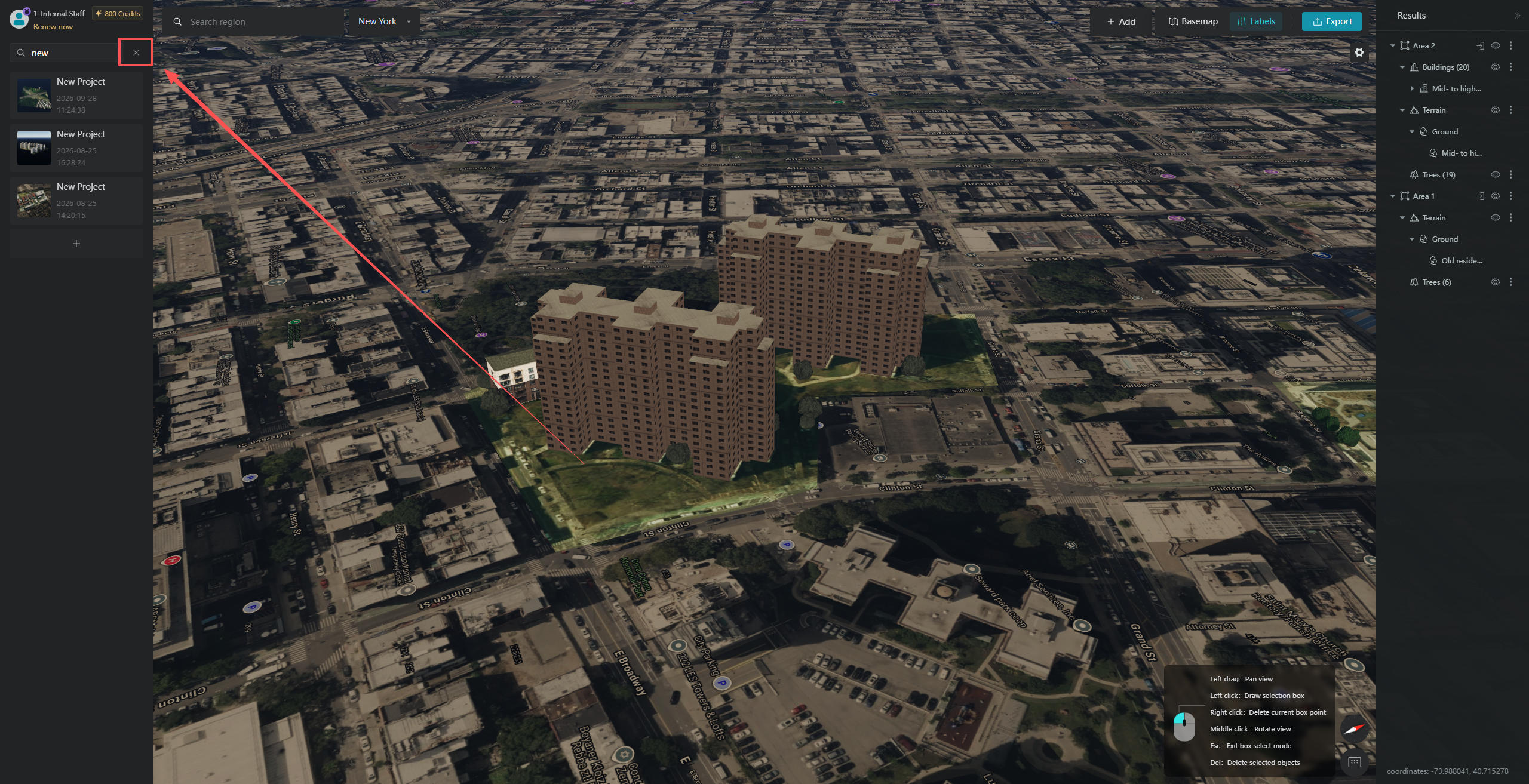
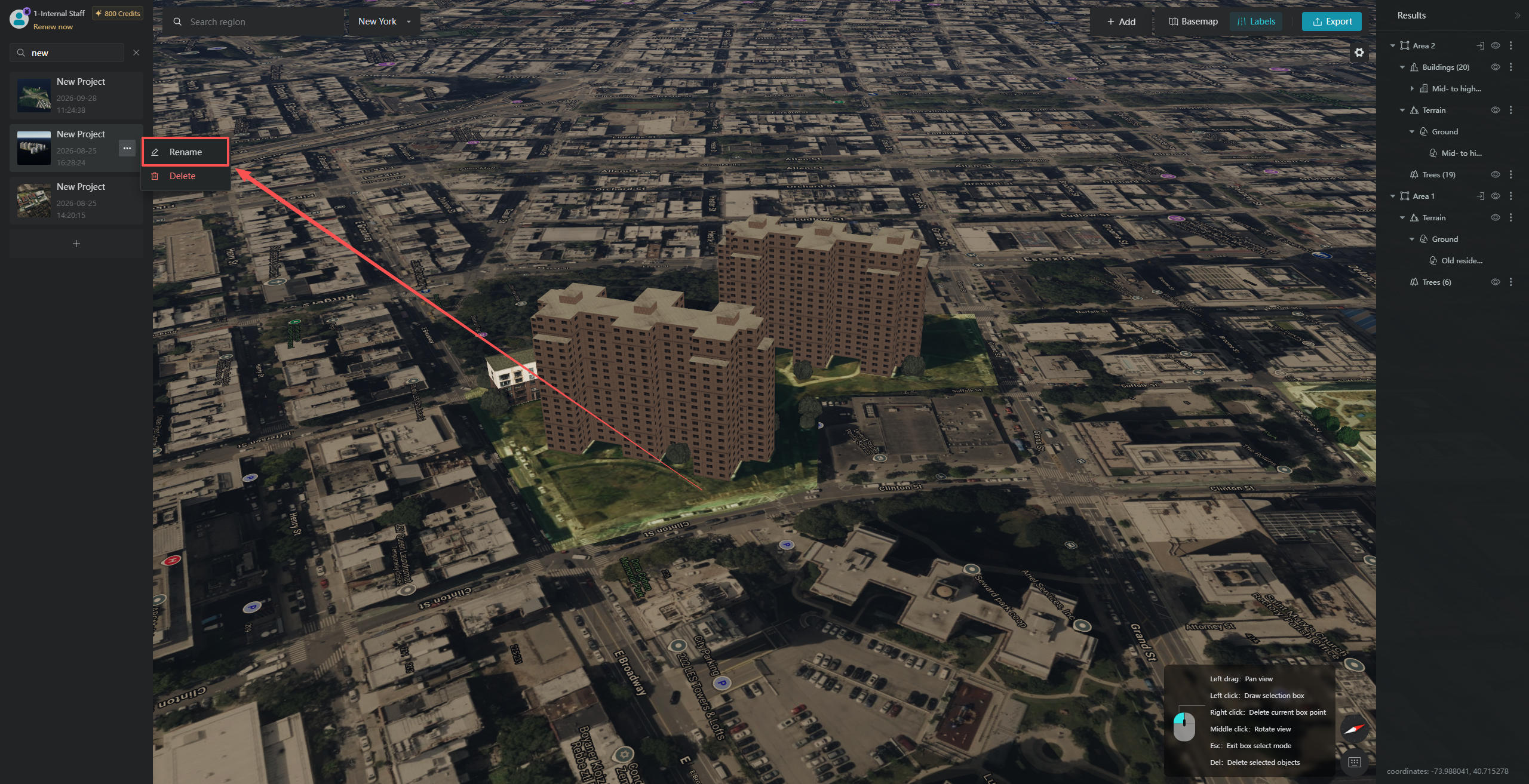
[Note] If all your projects retain the default name "New Project" after creation, the search feature will be of little use. Since all projects share the same name, searching for the keyword "New Project" will return every project at once, making it difficult to distinguish between them. We recommend renaming each project after creating it so you can easily find it later using the search feature.